Welcome to the Vienna Symphonic Library’s series of Synchron Instruments! This harpsichord with two manuals, a faithful copy of a historic model by the renowned French harpsichord maker François Étienne Blanchet, was recorded at Stage A, the main hall of Vienna's revitalized Vienna Synchron Stage. The recordings were executed using an expansive, phase-controlled multi-microphone set-up, capturing string effects played in a scoring stage with exceptional acoustics, now ready to be used in your studio. This document will provide you with the information you need to use the Library with our Vienna Synchron Player.
The microphone setup is subdivided into 10 recording positions. The Standard Library includes 4 of these positions (as well as a RAM-friendly Room Mix composed of merged samples from the individual positions), allowing you to integrate instruments recorded with a stereo Decca tree into your projects with our Synchron Player software that was designed exactly for that purpose. Adding the Extended Library and thus getting the Full Library expands your possibilities to 5.1 surround and more. Moreover, it offers a second Mid position.
Microphone positions:
Standard Library
00. Room Mix – Stereo
01. Main/Room Mic – Decca Tree Stereo (L/R)
02. Main C/Room Mic – Decca Tree Mono (Center)
03. Close 1 – Mono (condenser)
04. Mid 1 – Stereo (L/R)
Extended Library
05. Main Surround – Stereo (L/R)
06. High Stereo (3D) – Stereo (L/R)
07. High Surround (3D) – Stereo (L/R)
08. Close 2 – Mono (ribbon)
09. Close 3 – Mono (tube)
10. Mid2 – Stereo (L/R)
In the Synchron Player’s browser window, you will find a tab named “Mixerpreset”. It contains a number of Mixer Presets for room-mix, Decca tree multi mic, surround to stereo downmix, and surround that depict different recording situations. The basic Mixer Presets are Concert, Intimate, Player, Pop, Ambience, and Mighty. In the Player’s “Mix” tab, you can of course create Mixer Presets of your own.
The library provides two different kinds of Presets, accessible by clicking on the icons “Flow” resp. “Precision” in the Synchron Player’s top bar. Precision Presets are what you may already know if you own other VSL libraries. They allow you the explore the depths of the library, adjusting and tweaking parameters as you see fit. Flow Presets offer an intuitive, graphic approach to the library’s contents, with instrument, articulation, and sound parameters displayed in a single window once you have selected the Preset you want to load from the Flow Browser.
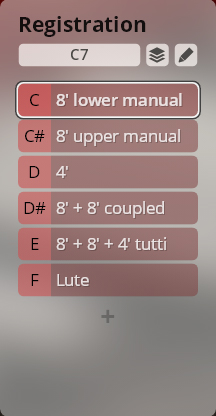
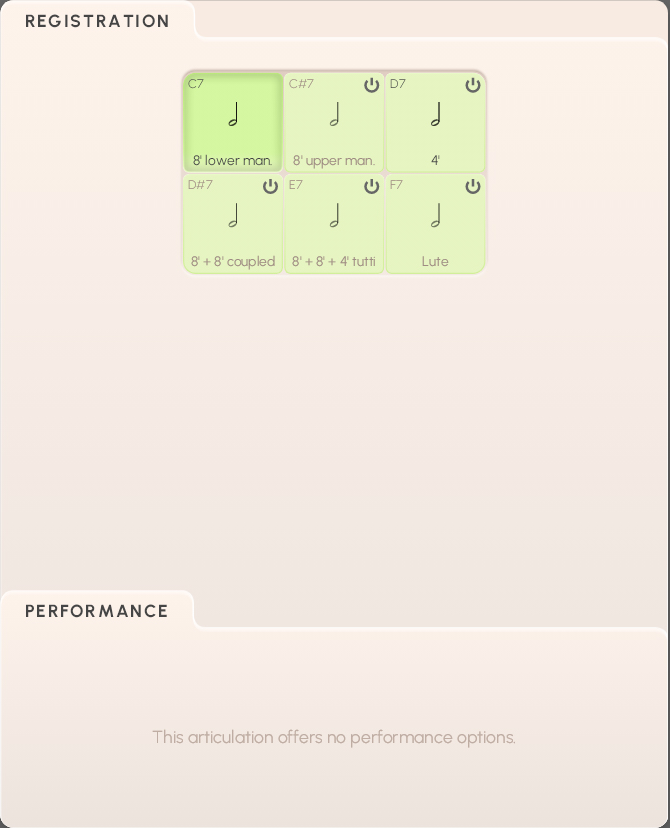
As the harpsichord’s range of articulations is confined to its choirs of strings and their combinations, a single preset with one dimension named “registration” suffices. These registrations, accessed by keyswitches from C7 to F7, are:
8’ lower manual
8’ upper manual
4’
8’ + 8’ coupled
8’ + 8 + 4# tutti
Lute
Registration: C7–F7
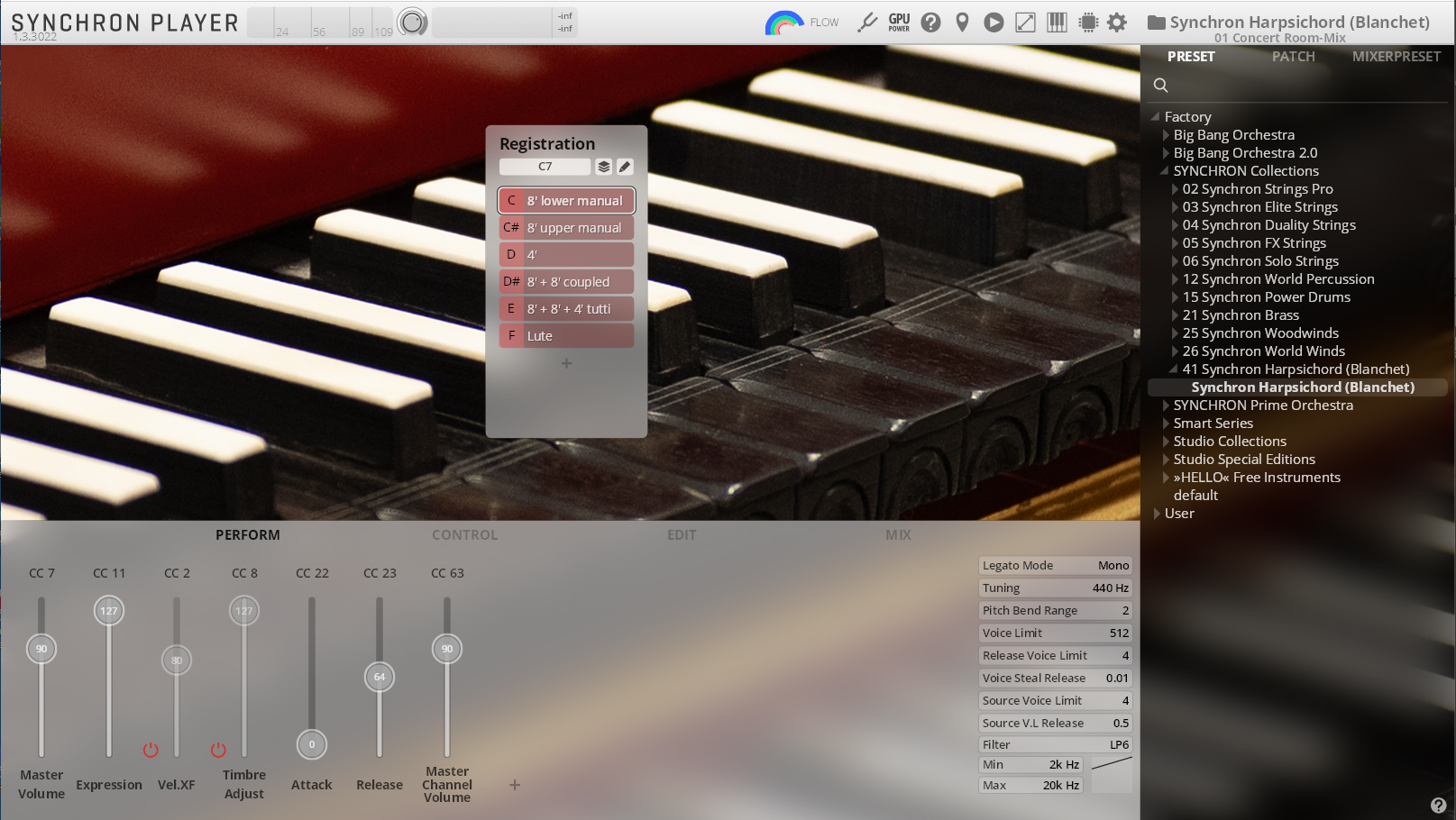
Flow Presets give you instant access to the most important parameters of an instrument, its articulations, and general sound settings in the Synchron Player’s Flow view. The display is subdivided accordingly, with the graphic keyboard underneath.
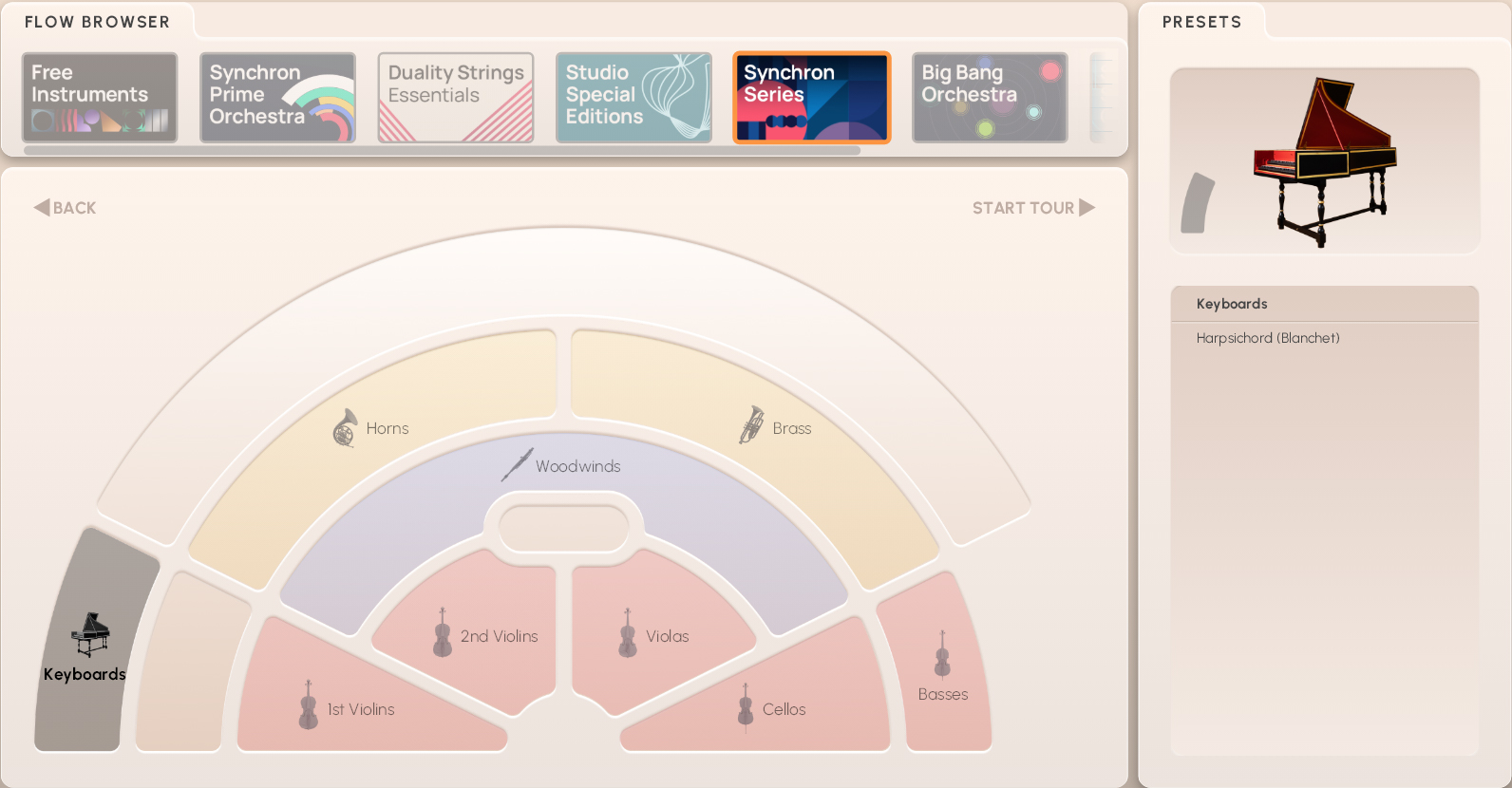
On the Flow Browser page, you can click on “Start Tour” to step through explanations of the different Flow elements and parameters. Alteratively, you can click on the Info Hub icon in the upper right corner of the instrument pane, where you can start the tour or connect to our online instrument academy.
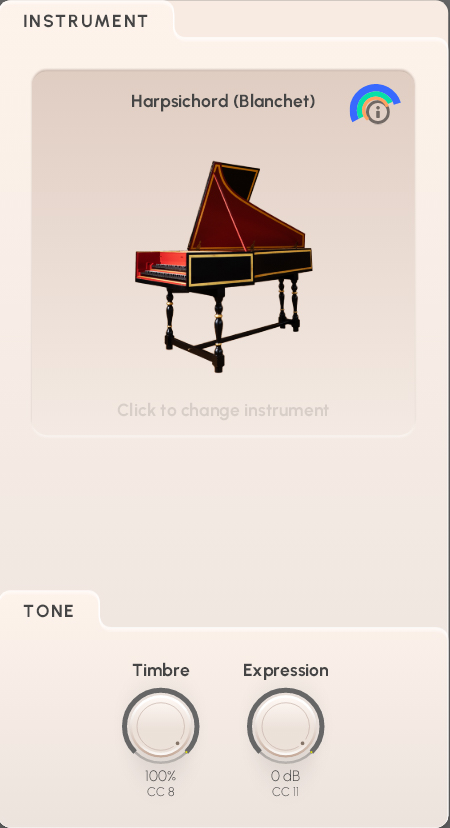
The Instrument section shows a symbolic image, headed by the name of the loaded Preset. You can return to the Flow Browser to select another instrument by clicking on the field.
Unlike other instruments, the harpsichord allows dynamic changes only via its registration; consequently, the virtual instrument lack a dynamics fader.
Timbre (MIDI CC8) affects the tone of the instrument, making it sound brighter or darker.
Expression (MIDI CC11) is an additional volume control defining a percentage of CC7 (volume), and can be used for automation.
The registration field contains the available patches, which can be selected with keyswitches from C7 to F7. As there are no other articulations besides the keystroke, the performance options remain empty.
In the Sound pane, you can select a basic Category on the top left, and one of the Mixer Presets from that category on the right.
Mic Balance (MIDI CC61) adjusts the relation between intimate and ambient microphoning.
FX/Reverb (MIDI CC5) sets the amount of reverb, which is different in intensity according to the selected preset.
Output Volume (MIDI CC63) takes care of how much of what you do comes out of the Synchron Player.
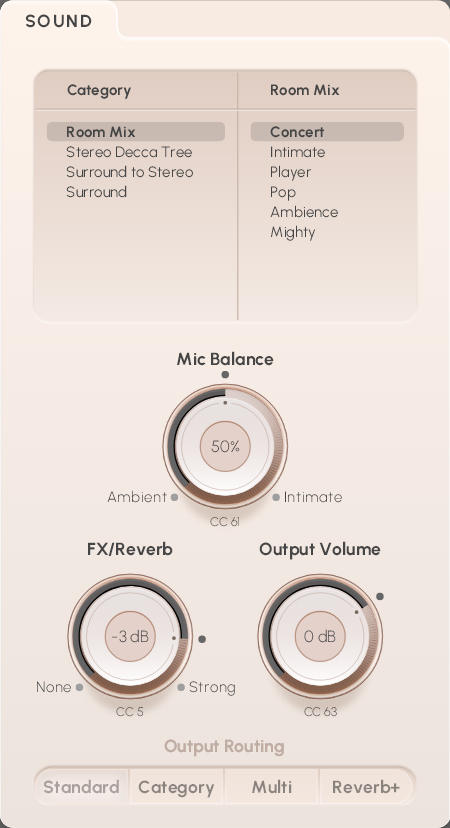
Finally, there is the choice of Output Routing represented by the four buttons Standard, Category, Multi, and Reverb+:
Standard is the standard Stereo configuration where all microphones are routed to the master output.
Category: here, only the ambient microphones are routed to the master output, while close microphones go to output 2,
Multi routes all microphones to different outputs.
Master out – Main, Room-Mix, Reverb
Output 2 – Main-Center
Output 3 – Surround
Output 4 – High-Surround
Output 5 – Mid
Output 6 – CloseReverb+ is routed like the Multi configuration, but has the Reverb channel routed to its own output 11.
If you’re not sure about the routing options, click on the information button next to the heading, which also provides graphic information on routing paths.