Use the MIDI Player to play integrated drum patterns included with selected percussion products, or to record, play back, and loop your own MIDI files.
Loop files are available for products such as:
Synchron Percussion
Synchron World Percussion
Synchron Power Drums
Big Bang Orchestra Percussion
Studio Jazz Drums
and more to follow
The MIDI Player follows the tempo at the current song position in your sequencer. You can adjust MIDI files, for example, velocity and tempo, and import them into your sequencer via drag and drop.
In Synchron Power Drums, folders named “3 drum sets in 1 MIDI file”, and in Synchron World Percussion, folders named “Full ensemble for DAW”, contain files with the included instruments assigned to different MIDI channels for simultaneous use.
The MIDI files in the factory folder also provide groove elements sorted by instrument, allowing you to create your own grooves and combine patterns as needed.
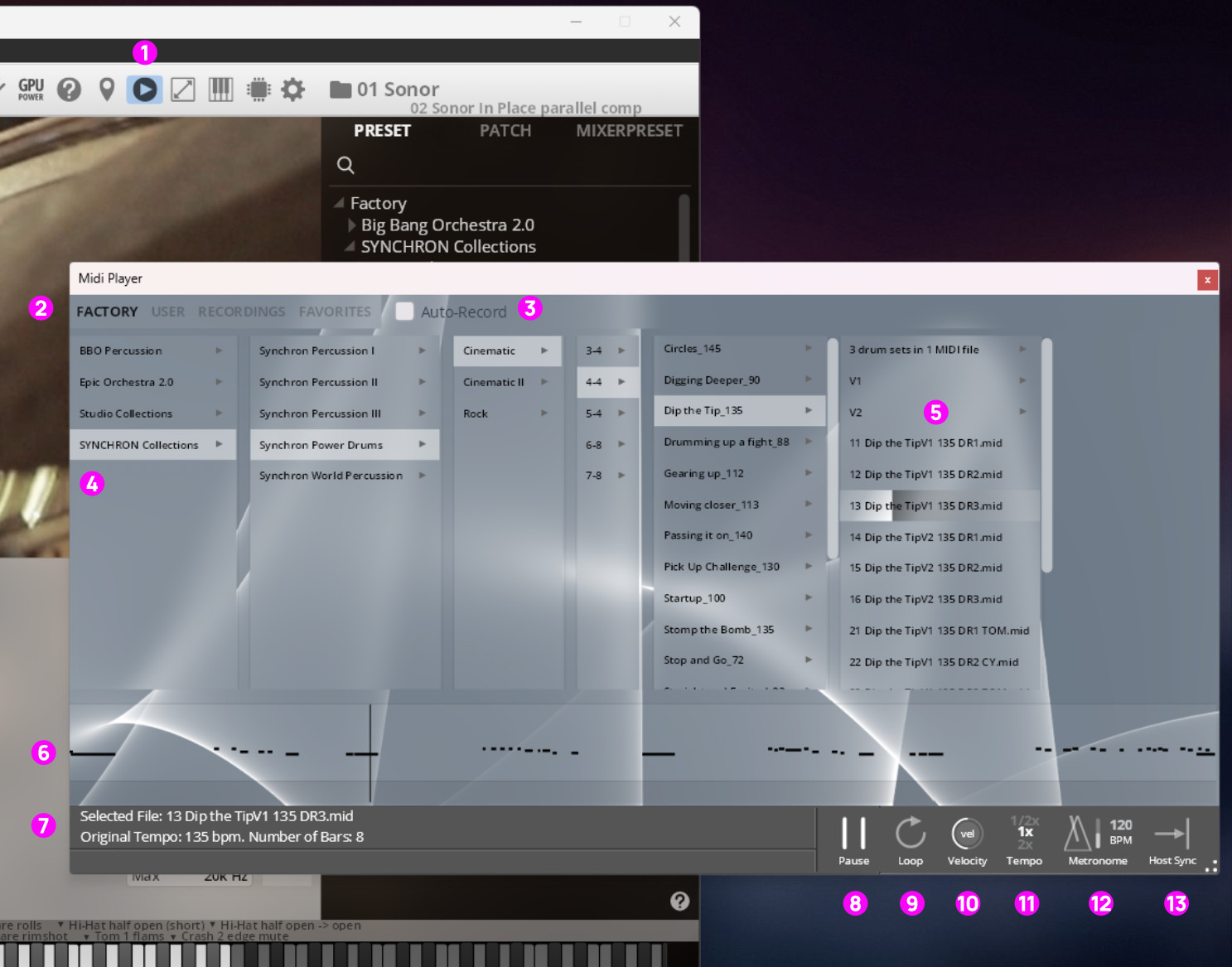
MIDI Recorder/Player Icon: Click to open the MIDI Recorder/Player.
Standalone only: Red dot indicates recording. Minimum notes played: 5File Selection Menu: Factory offers MIDI performances; User shows manually imported MIDI Files; Recordings shows recordings made in Standalone mode; Favorites shows all files marked as favorites.
Enable/Disable Box: Toggle automatic MIDI recordings on and off.
Browser: Like in Finder / Explorer, you can move through the available structures.
Loops: The list of available files within the current selection.
Piano Roll Preview: Shows a quick overview. Regions can be selected.
File Details: File name, tempo, and number of bars.
Play/Pause Button: Activate with the spacebar or mouse click.
Loop On/Off: Activate/Deactivate looping (also works in marked regions).
Velocity: Fine-tune the dynamics of your performance.
Tempo Multiplier: Select half-speed, normal speed, and double speed.
Metronome: [Standalone only] Activate a metronome, adjust the tempo with mouse up/down, and adjust the volume with the slider
Host Sync: [Plug-in only] When activated, the Play/Pause button is disabled, and playback will start when your sequencer starts.
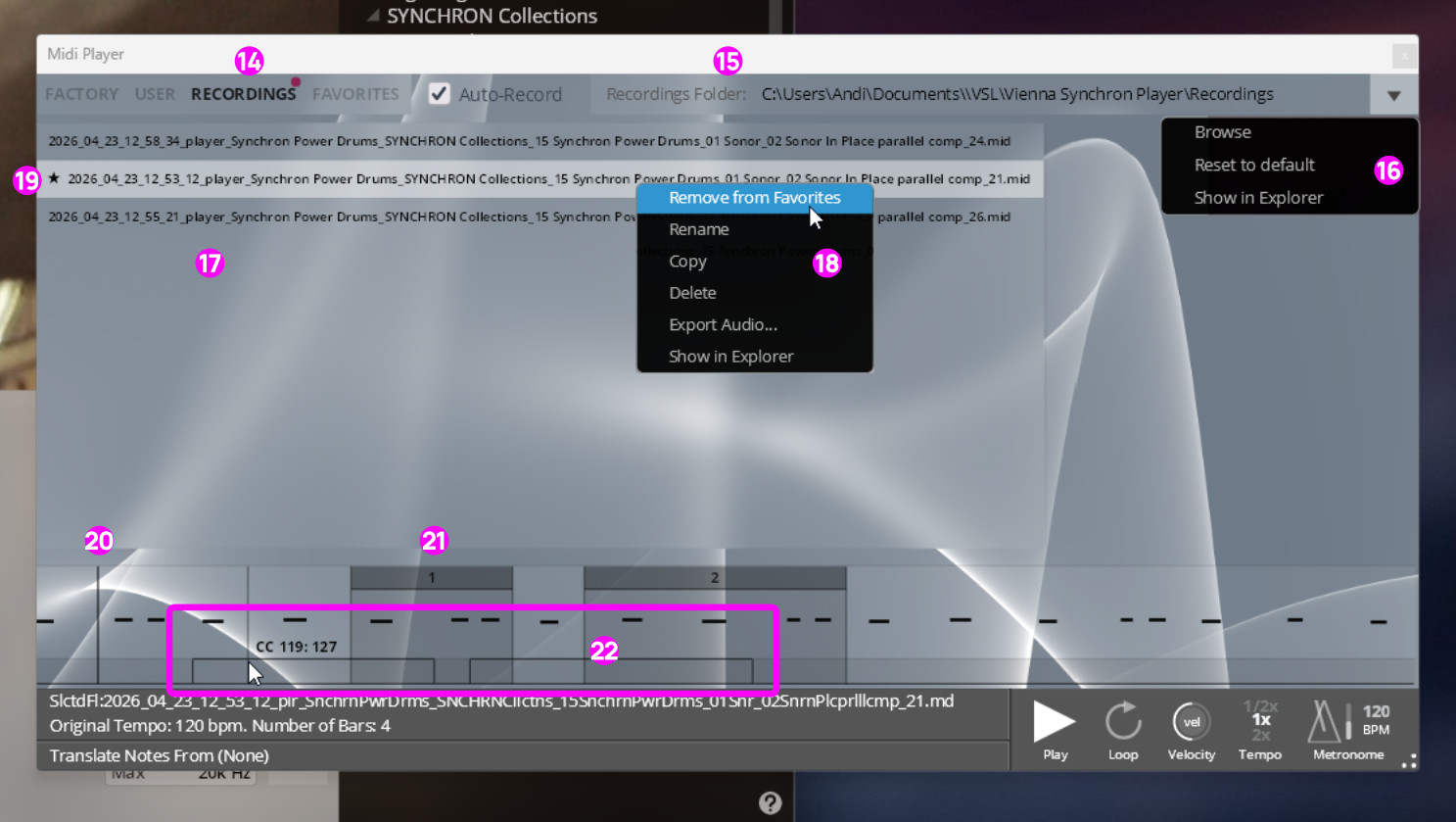
Recordings Tab: All patterns you play in your Standalone Synchron Player will be listed here. 5 notes minimum, closed after 5 seconds of silence.
Recording Folder: Shows the location of your recordings.
Recording location: Can be adjusted here
List of Recordings: All your performances, with time-stamp and library/patch description.
Context menu: Make a performance a favorite, rename it, copy it, or delete it. Additionally, you can export audio as WAV files.
Favorite: A star indicates a favorite file.
Playhead: Indicates playback position, can be moved with the mouse.
Region: Shows interesting passages. Create regions by dragging your mouse.
CC controller lane: Shows CC performance, with CC identification.