Vienna Ensemble Pro 8 incorporates the first all-in-one MIDI and audio LAN solution that works universally on Macs and PCs. You need a working Gigabit connection and at least one iLok License, and neither audio nor MIDI Interface is needed on your networked computer!
In a nutshell:
1 computer setup: iLok Cloud or iLok key.
2 computer setup with 2 VE Pro servers: You will need at least one iLok key.
You can easily load your previously saved Vienna Ensemble (Pro) templates, and you can even merge existing Vienna Ensemble (Pro) projects!
Important for Upgraders from VE Pro 7
Open your existing Vienna Ensemble Pro 7 songs with the same network settings you had before.
Once the song is saved with Vienna Ensemble Pro 8, reconnection will use the server name instead of the ip address.
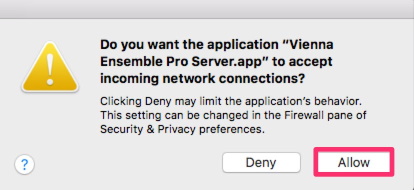
If you experience problems with the connection to VE Pro Server, please try and deactivate the MacOS Firewall to see whether this resolves the problem.
Unfortunately, the built-in Apple Firewall only allows exceptions on an application basis, not for individual ports. VE Pro uses multiple ports for operation, therefore the Apple Firewall will always throw this message unless it is deactivated altogether. The functionality of Vienna Ensemble Pro is not affected if you click "Allow".
Also, network utilities such as Little Snitch, various Parental Control applications, and some Audio plug-ins (e.g., some 2cAudio plug-ins) are known to sometimes interfere with VE Pro connectivity.
On Windows computers with activated firewalls, make sure that these ports are open:
6472 (TCP)
6473 (TCP)
Click "Start" and type "fire" in the search window
choose "Firewall with Advanced Security"
Click "Inbound Rules" in the upper left corner of the window

Click "New Rule".
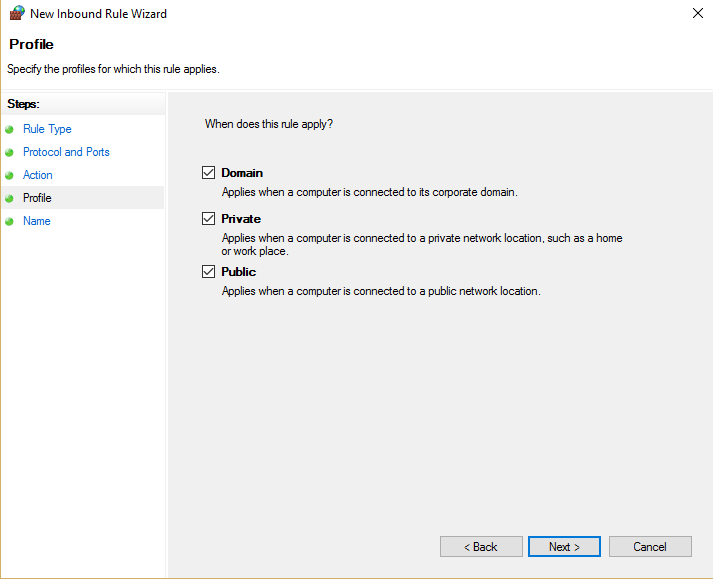
Choose "Port", then "TCP" in the next window, and enter the ports.
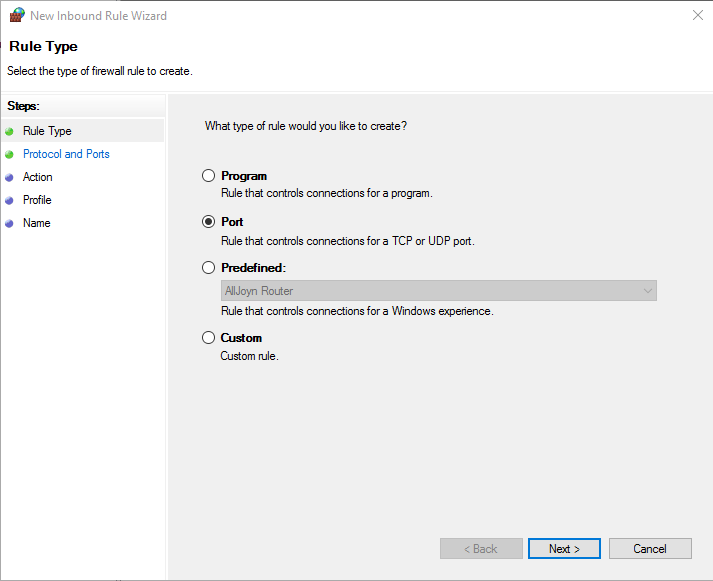
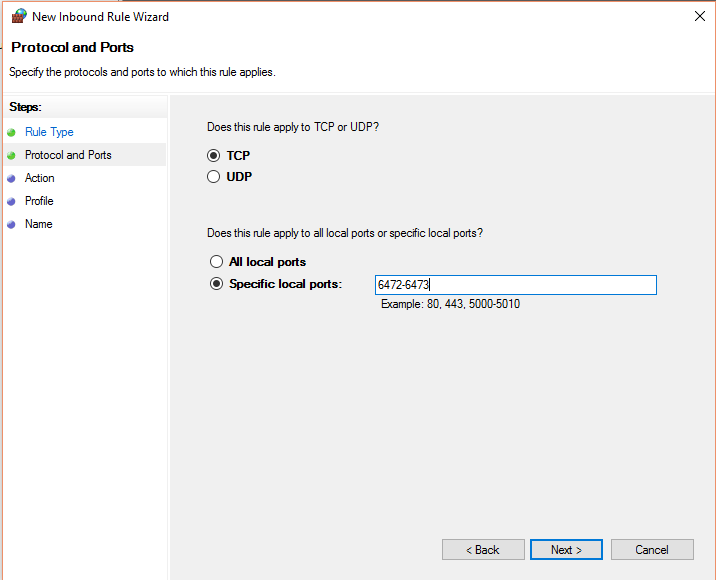
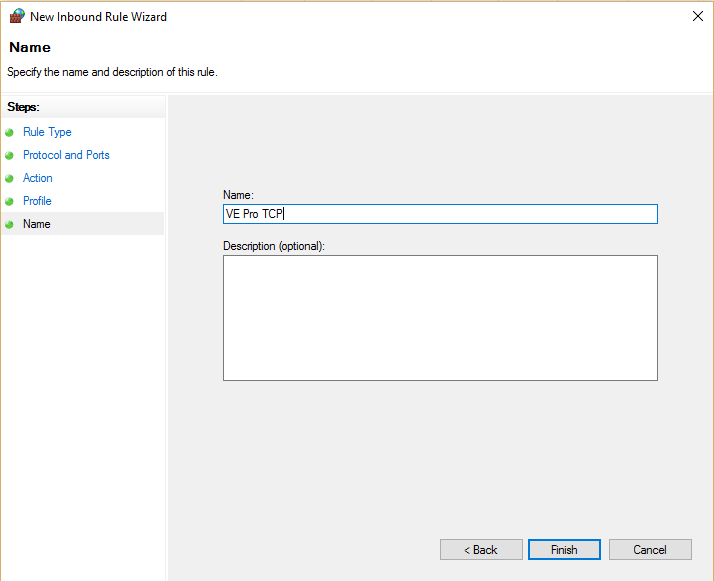
Save the profile and Rule Name: