You can save and open separate Vienna Ensemble Pro Projects using the icons in the taskbar or by using the Instance menu in Vienna Ensemble Pro.
The saved files are called projects and are saved as *.vep64 files. The extension .vep stands for "Vienna Ensemble Project". A Vienna Ensemble Project contains all information saved in a single Vienna Ensemble Pro instance! When loading a project (*.vep file), the file name will be displayed in [ ] in your Vienna Ensemble Pro Instance Window Title (in this case: "Solo Strings").

Each Vienna Ensemble Pro Instance is represented by one tab, and the selected instance is highlighted with a small white frame. The Plug icon shows the connection state of an instance (pale = not connected, white = connected). The Power button lets you enable and disable an instance. The Lock icon shows the preserved state (open lock = not preserved, closed lock = preserved). The Decouple icon shows the Decouple state (pale = coupled, white = decoupled).
Instances can be labeled without switching to the preserved status.
If you preserve a newly created instance and name it, e.g., "Strings", this instance name will be displayed in the Vienna Ensemble Pro Server Instance Tab and the Vienna Ensemble Pro Instance Window Title.
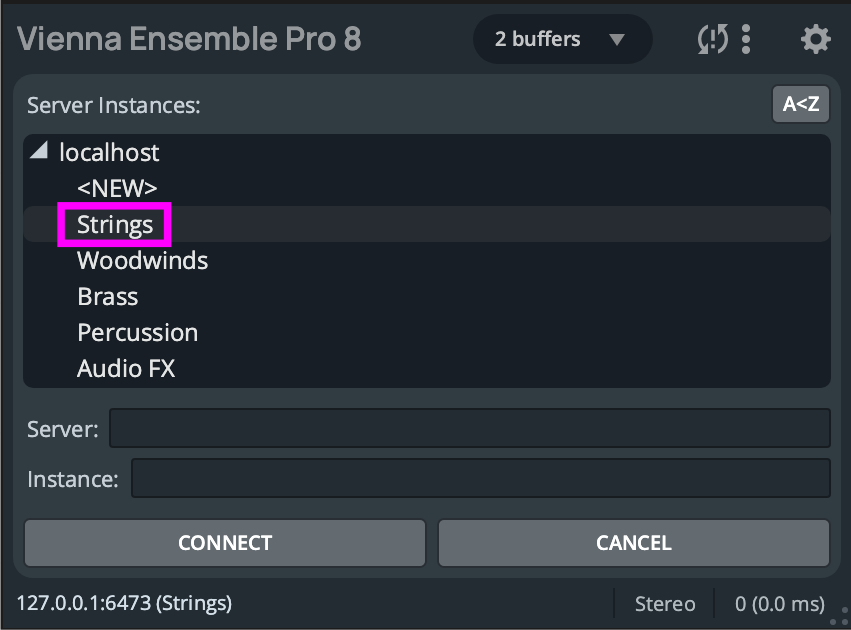
- as well as the Vienna Ensemble Pro Server Interface plug-in in your sequencer:
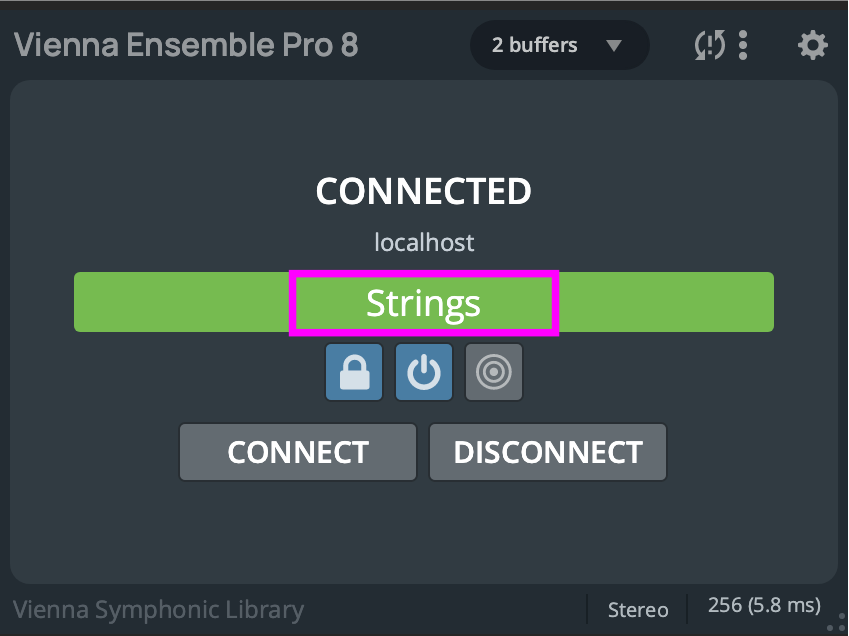
If an instance is already connected, it will NOT appear in the list of available instances anymore.
The Vienna Ensemble Pro Server always displays the connection status, the name of the instance, the name of the master computer the Vienna Ensemble Pro Server is connected to (in this case it's the same computer, localhost), and the name of the loaded project (*.vep64).
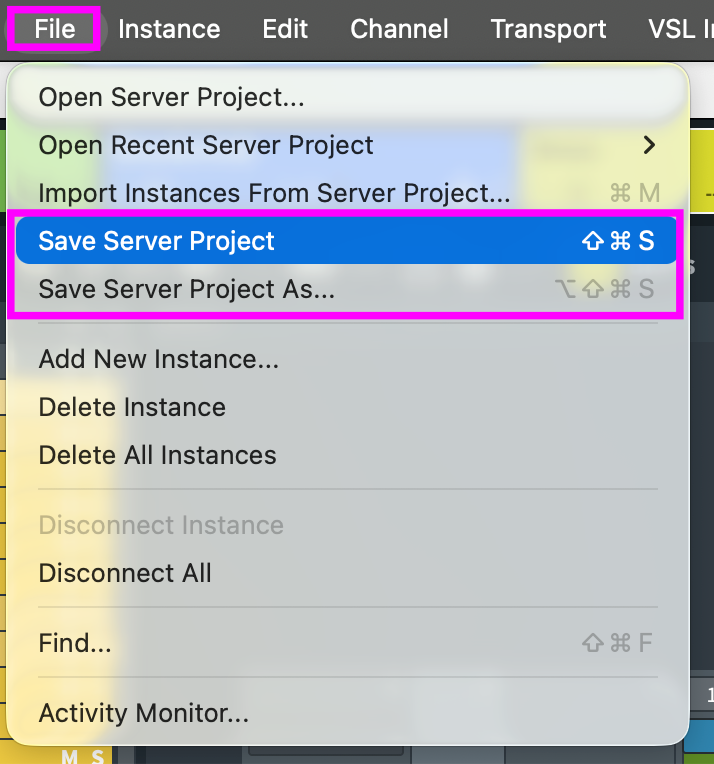
Once you have set up your template with more than one instance of Vienna Ensemble Pro, you can save a Vienna Ensemble Server Project. Use the File menu to save a Vienna Ensemble Server Project (*.vesp). A Vienna Ensemble Server Project is a group of Vienna Ensemble Pro instances saved together. It contains the complete information of all Vienna Ensemble Pro instances on the given Vienna Ensemble Pro Server. Server Project files will be called *.vesp64. The name of the loaded Server Project will be displayed in [ ] in the Vienna Ensemble Pro Server Window Title.
On Windows, you can place your favorite default Vienna Ensemble Server Project in your startup folder. On macOS, it’s the Login Items defined in your "Accounts", so that all samples and settings will be loaded up when you come back from your morning coffee!
To accelerate the creation of your new templates, you can use the Merge function in Vienna Ensemble Pro’s Instance menu to import selected channels from an instance, or Import entire instances from another Server Project in the File menu.
Instance:
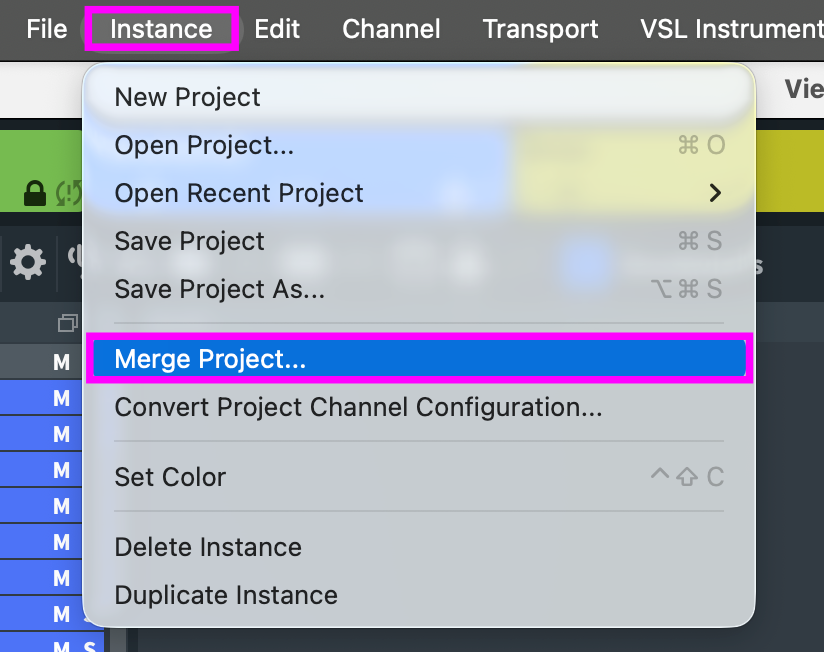
Select an existing project (.vep) file and choose from the available import options:
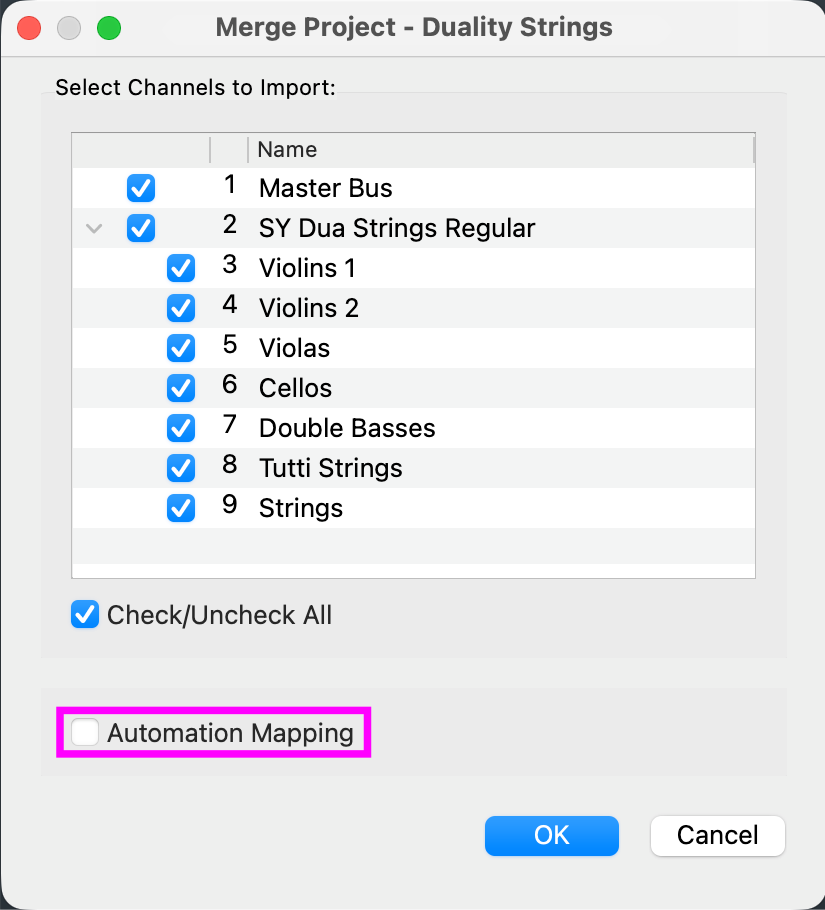
Server Project:
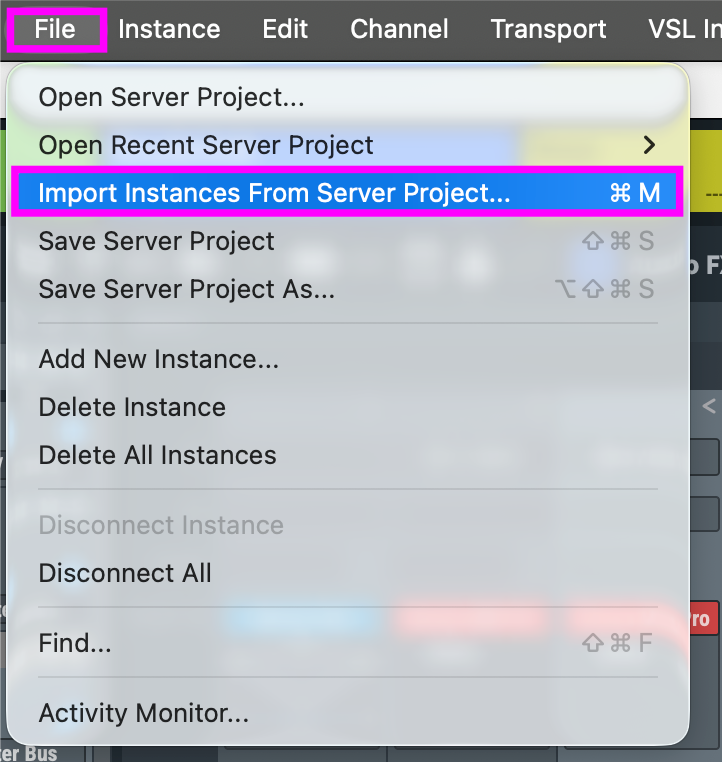
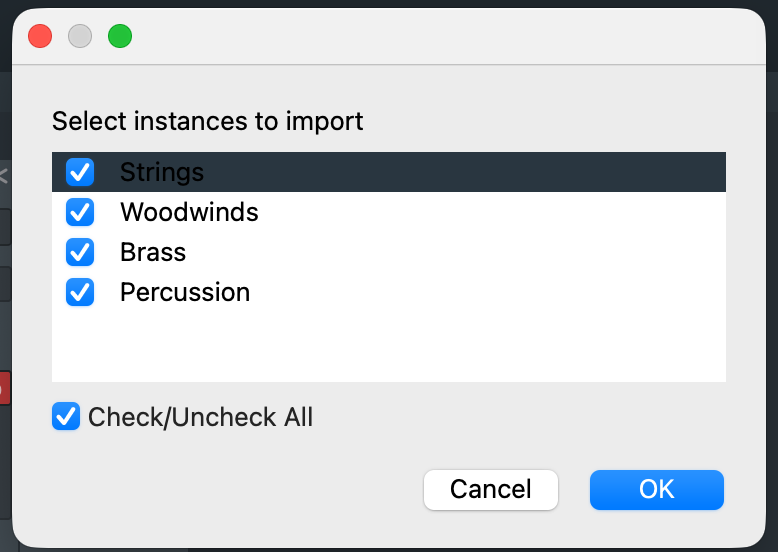
Select an existing server project (.vesp) file and check the instances you want to integrate into your project:
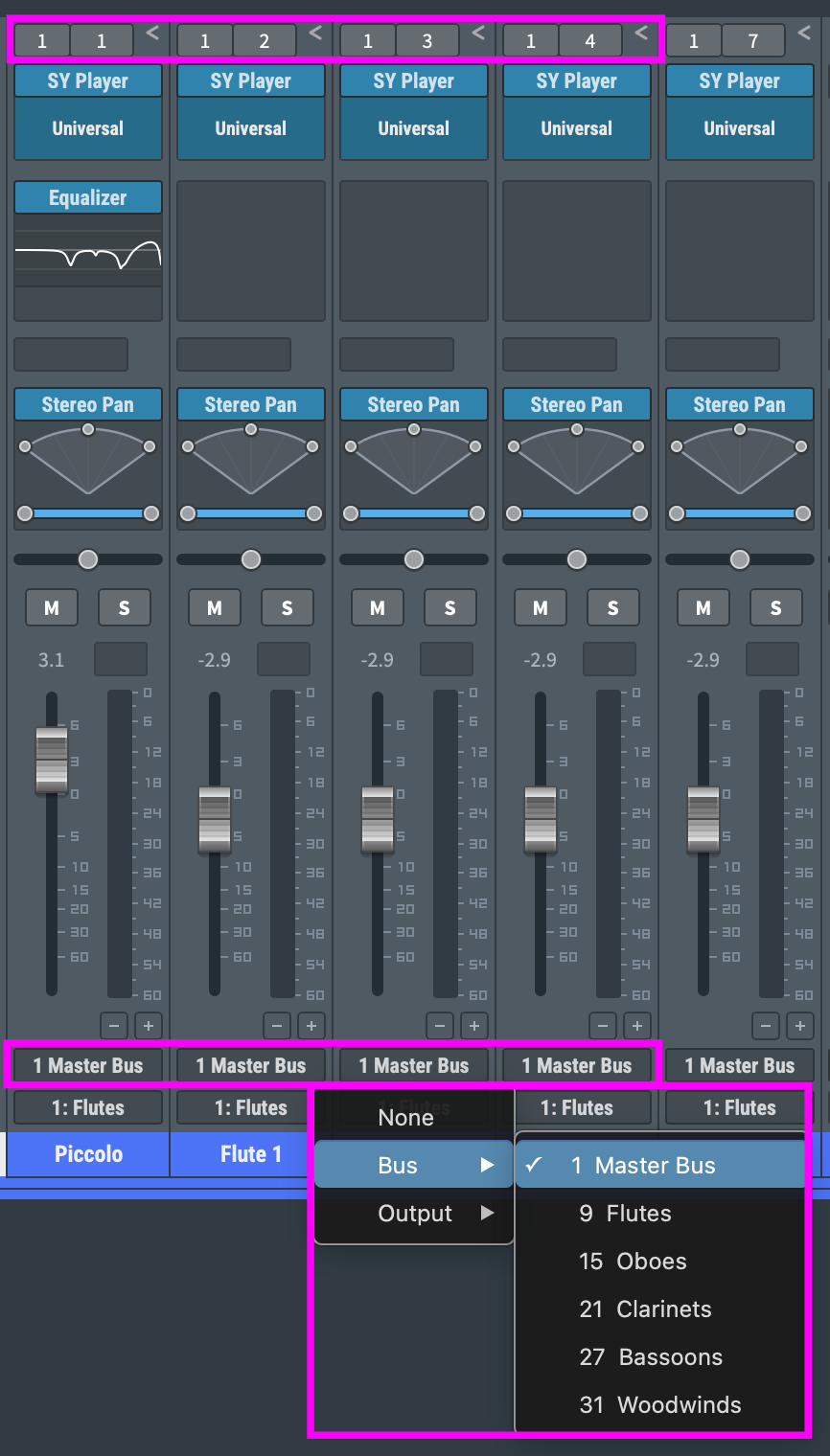
After you have merged your projects, please assign the appropriate MIDI ports and MIDI channels as well as the Output configuration.
Important information for users of older versions of Vienna Ensemble Pro:
The *.viframe and *.mframe files created by Vienna Ensemble Pro 4/5 are no longer in use. They are replaced by *.vep64 resp. *.vesp64 files.
Of course, you can still load your old files. To save them with the new file extensions, simply click "Save as" to get the new names.