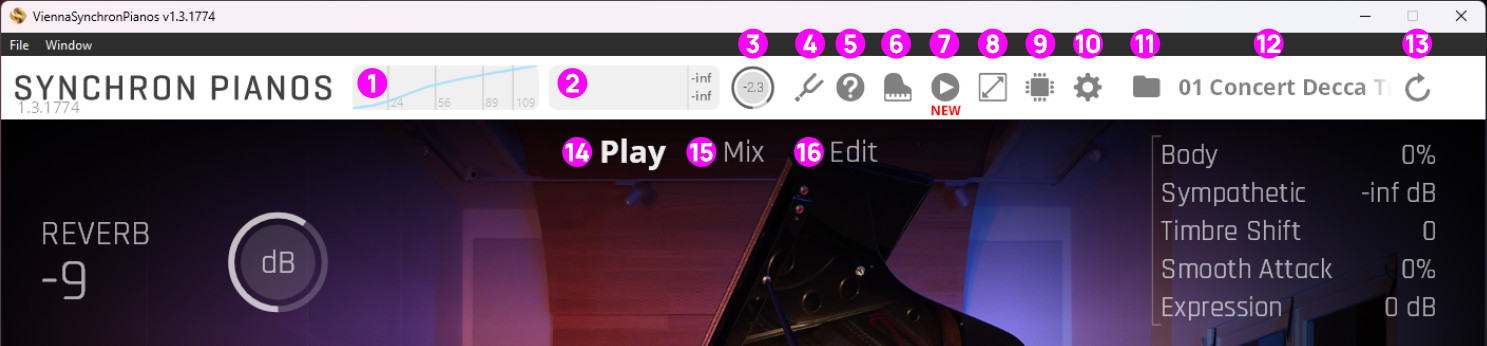
Velocity Histogram: Shows the received velocity of every key you play on your keyboard. You can freeze/unfreeze the Velocity Histogram by double-clicking on the histogram display.
Volume Meter: Displays the stereo output volume. Clipping will be indicated with a red display.
Volume Knob: Adjusts the overall volume. It is linked to the Volume Knob on the left of the main GUI. Click-drag or double-click to edit.
Command/Ctrl-click to reset.Tuning: Choose tunings other than the common 12-tone equal temperament, from African to Western. Described in the chapter Tuning System.
Online Manual: Connects you with our Knowledge Base (Online Manual).
Piano Selection (visible with more than 1 Synchron Piano license): Shows a selection window.
MIDI Player: Play back integrated piano performances, or your own files, on the currently loaded piano.
Scale Button: The Rescale Button lets you adjust the size of the Synchron Piano GUI in steps from 75% to 200%.
CPU Real-Time Display: Shows the actual CPU load on your computer. Lower latencies and higher voice counts will result in a higher CPU load.
Settings: Let's you adjust your Interface and Engine settings, thereby affecting overall performance. Here, you can also assign the correct sample content in the Database tab.
Preset Button: Click on the Folder icon to hide or show the Preset Browser.
Current Preset Display: Shows the currently loaded preset. When loading presets from the PLAY View, performance-friendly Room-Mix Presets are loaded.
Reload GUI: Changing certain settings may require reloading the user interface.
Play View: Lets you adjust all major parameters of Synchron Pianos.
Mix View: Provides a versatile mixer for all available channels and the Reverb Settings.
Edit View: Allows for even more fine-tuning on a per-note basis, both for EQ and Dynamic Range.
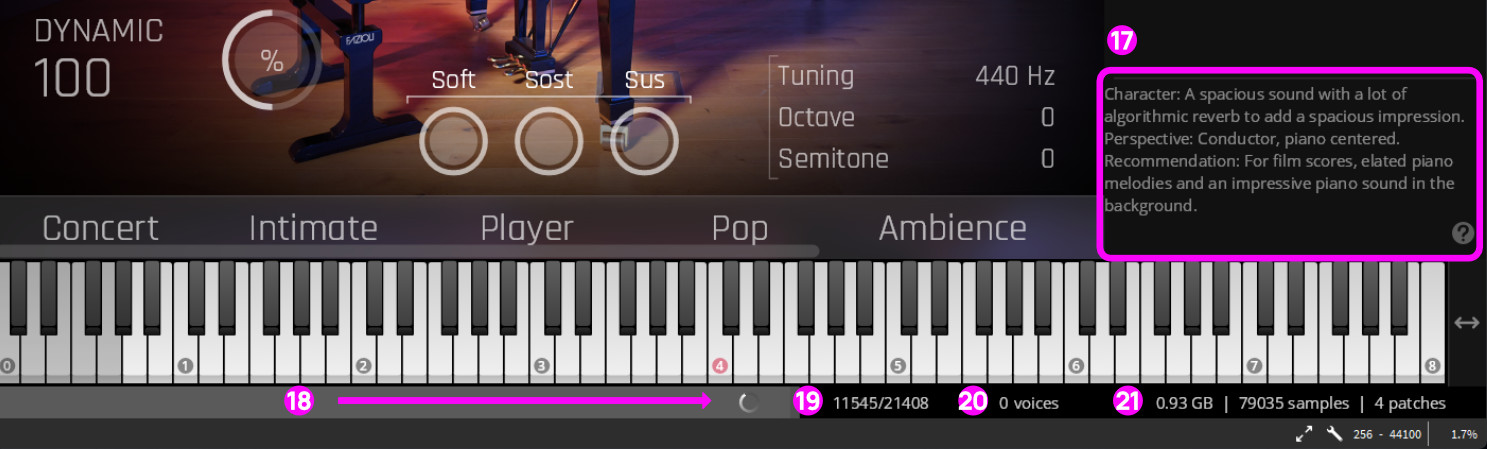
Information Window: When the Preset Browser is open, you will find additional information and mouse-over information right here.
Progress Bar: Indicates loading progress.
Loading Indicator: Shows active sample loading.
Voices: Number of currently played voices on all active microphone channels.
RAM Load | Overall loaded samples: Currently used RAM and sample count.