Warning
Before you bounce, freeze or export, make sure all performances are rendered. Compact View shows "All rendered" for its own instance, or how many of its performances are not rendered yet. For the whole project, open the Project Control Room: the LED of an instance is green when all its performances are rendered. When you bounce a track, every passage that is not rendered yet contains the preview sound with soft pink noise. The pink noise is intentional, so that you notice the unrendered parts: the preview sound alone would be hard to spot.
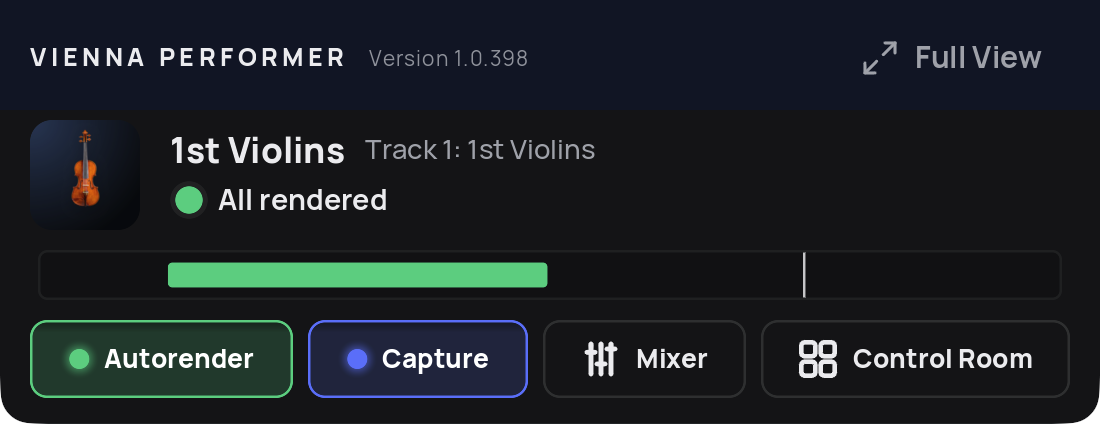
When you import a long MIDI file, Vienna Performer needs to hear it once. Play the passage with Capture on, or run an offline bounce of those tracks with Capture on: this sends all MIDI to the plug-ins quickly. Discard the bounced file afterwards as it only contains the preview sound with pink noise.
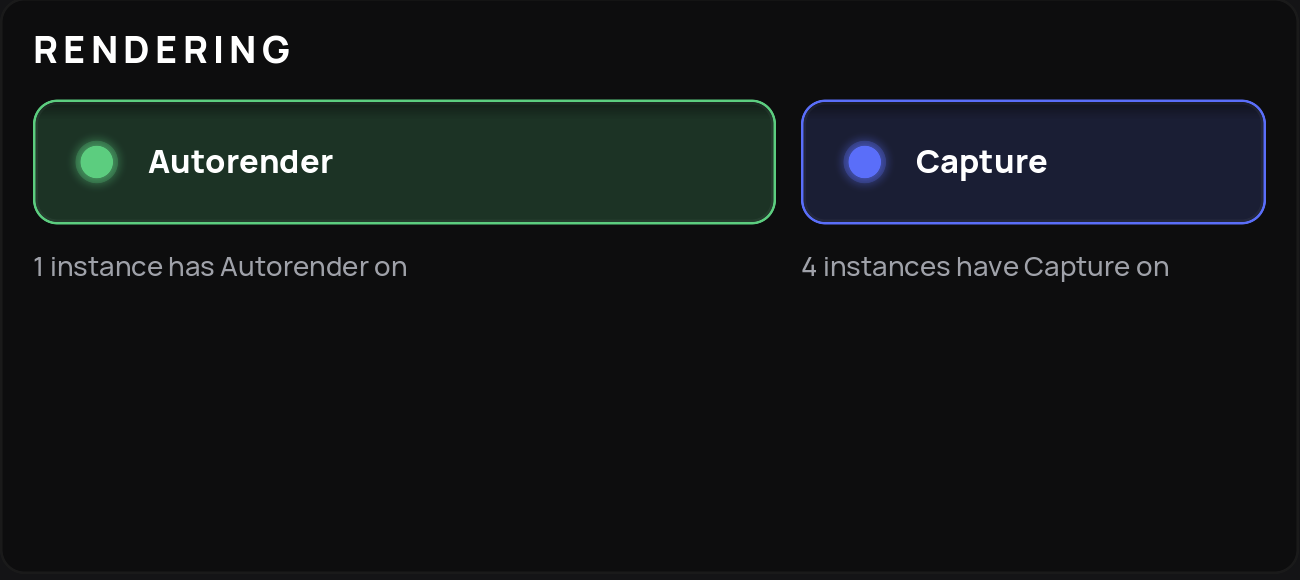
You can load Vienna Performer in a Vienna Ensemble Pro instance as an integrated instrument and capture your MIDI through the Vienna Ensemble Pro plug-in in your DAW.
Warning
It is not recommended to use Preserved and Decoupled mode with Vienna Performer in Vienna Ensemble Pro.
A preserved instance stays loaded in Vienna Ensemble Pro when you switch to another project, together with its performances. If you connect a new project to this instance, nothing plays as the MIDI input doesn't match your rendered files saved with the Vienna Ensemble Pro project. To continue, you would have to capture everything again and set a new render folder, to avoid rewriting the existing performances.
Recommended
Keep the instance that contains Vienna Performer unpreserved and coupled, so that all its data is saved with your DAW project and set your render folder where your DAW project is saved.
You can check this in the Vienna Ensemble Pro plug-in:
Preserve (1) is off: the lock is open and grey, and the instance name is in italics. A closed blue lock and an upright name mean that the instance is preserved.
Decouple (2) is off: the button is grey. An orange button means that the instance is decoupled.
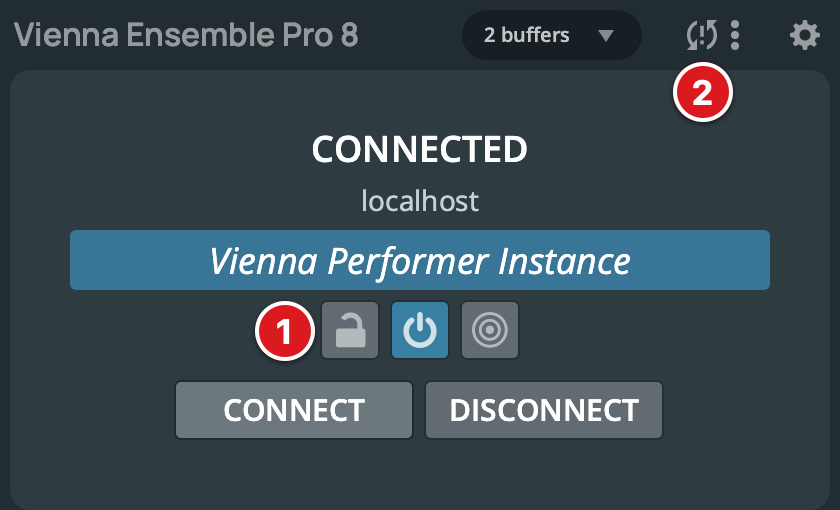
You can use your existing templates as they are, with your sample libraries preserved and decoupled if you like. To add Vienna Performer to such a template, create a new instance for it that is unpreserved and coupled.
Vienna Performer recognizes Dorico, Sibelius and MuseScore as notation programs and adapts how it reads dynamics and techniques: like in a score, the last dynamic and technique before a passage apply to it. MuseScore is not officially supported.
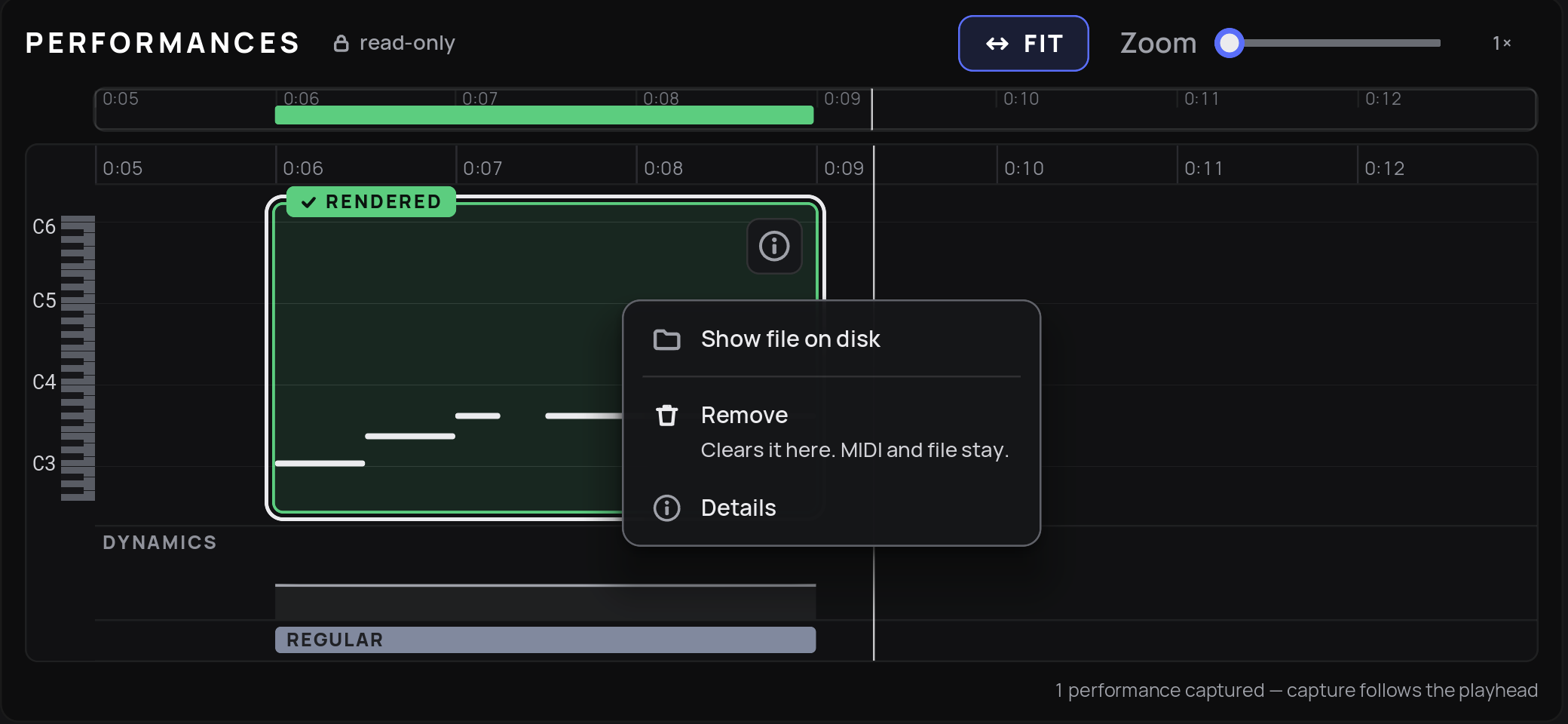
The renders are FLAC files. Inside the render folder you choose, Vienna Performer creates a vienna-performer folder and saves the renders in vienna-performer/renders. You can find the file of any performance with Show file on disk (right-click menu), for example to clean it up in an audio editor.
Copy the render folder together with your DAW project. When you open the project, Vienna Performer finds the existing renders and does not render them again.
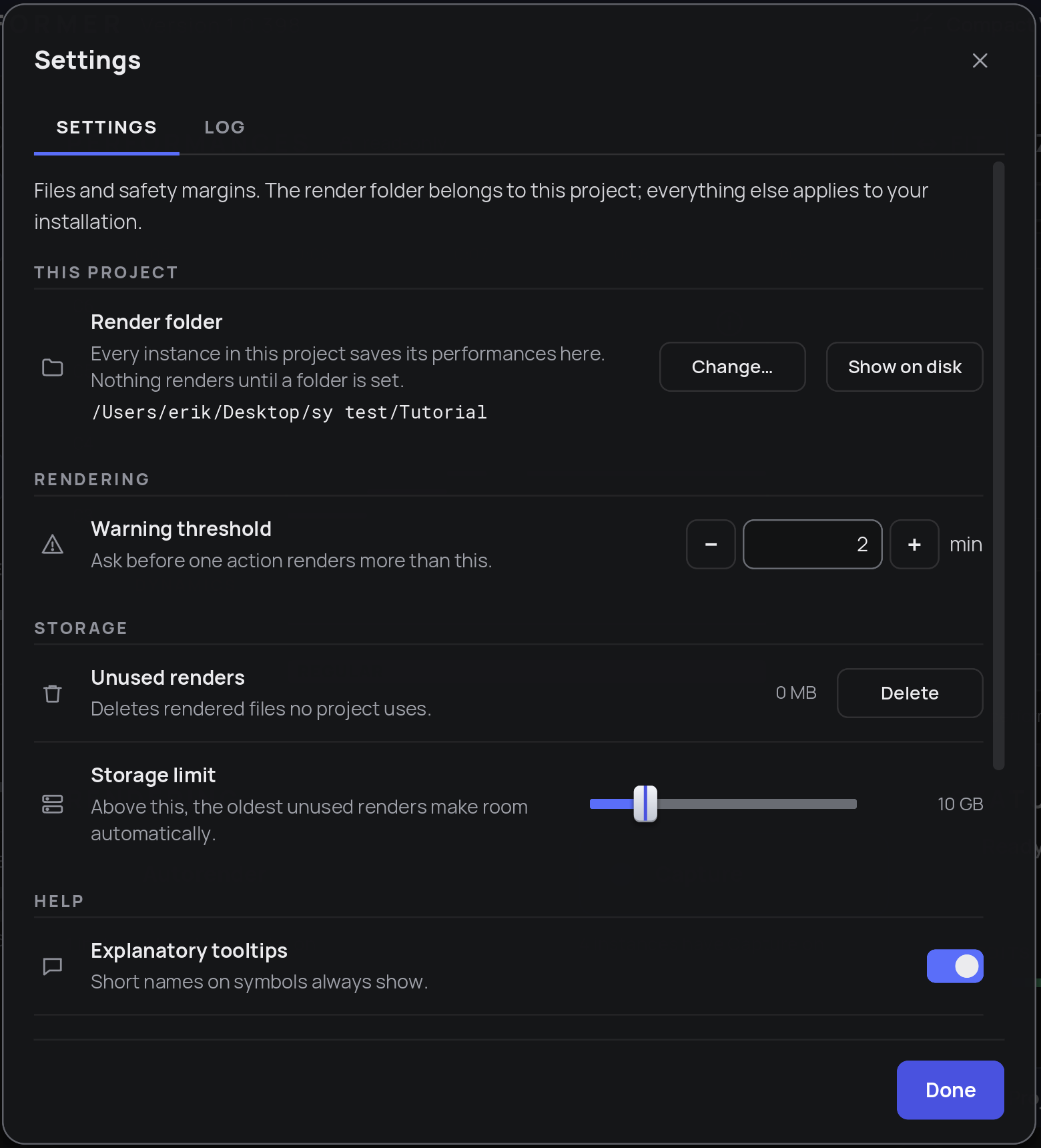
If the render folder is missing or cannot be written to, Vienna Performer shows a warning with the path it could not use. Set the render folder again in Settings.