This chapter takes you from an empty track to your first rendered performance.
Create an instrument track in your DAW and insert Vienna Performer. The plug-in opens on the Welcome screen, where you choose the instrument or section for this track. Nothing renders or costs anything at this point.
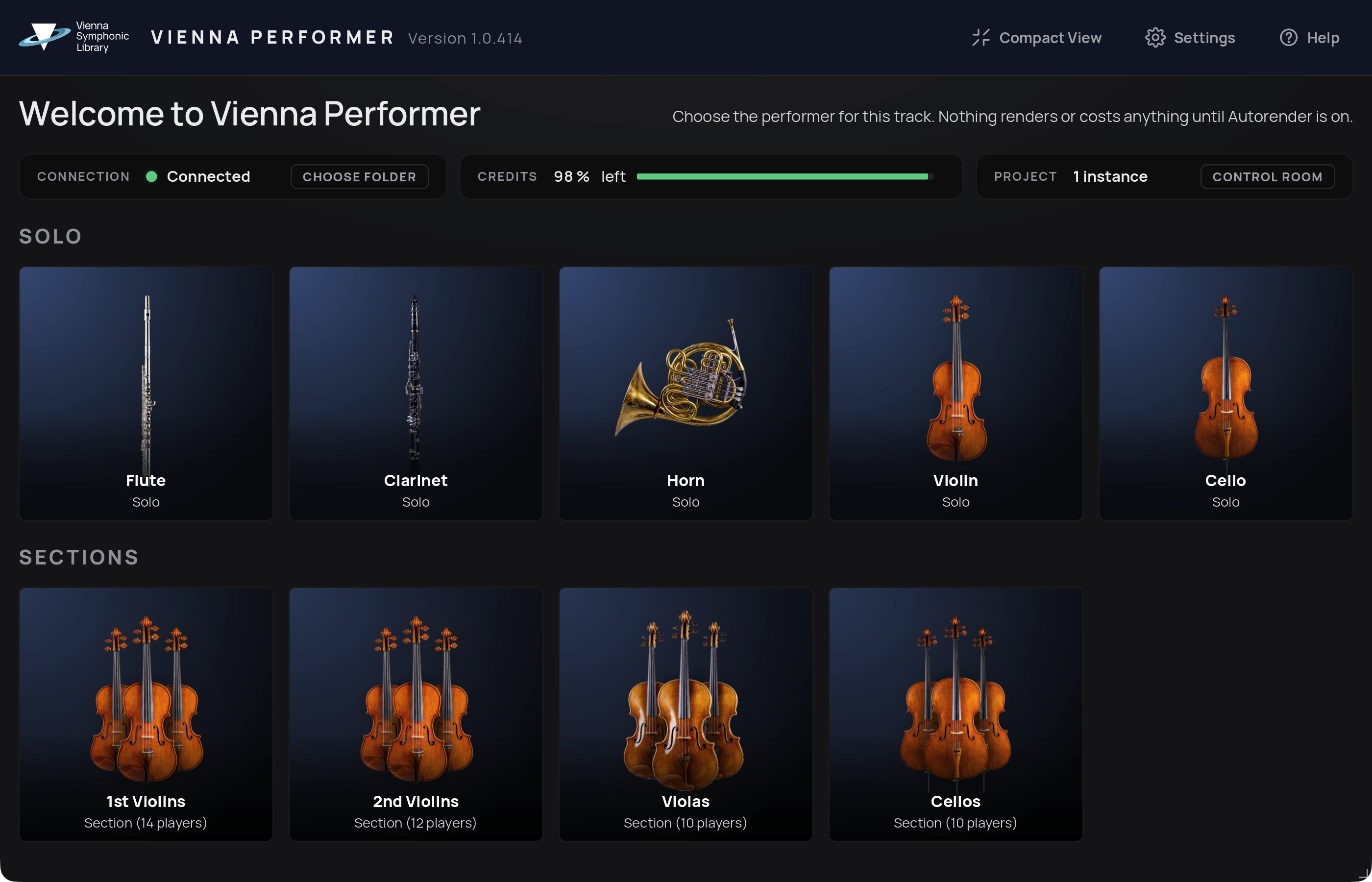
The bar at the top of the Welcome screen shows:
Connection: Connected when you are signed in to your VSL account and Vienna Performer can reach the render servers; Signed out when you need to sign in (see Signing in).
Choose Folder: sets the render folder for this project (see below).
Credits left: your remaining render credits.
Project: how many Vienna Performer instances this project contains, with a shortcut to the Project Control Room.
The instruments are grouped into Solo and Sections. Click an instrument to load it.
Every project needs a render folder, where Vienna Performer stores the rendered audio files. Until a folder is set, an orange banner reminds you to choose one, and nothing renders.

Click Choose Folder in the banner and select a folder on your computer. All Vienna Performer instances in this project share this folder. You can change it later in Settings.
Tip
Create the render folder inside your DAW project folder. When you move or archive the project, the renders travel with it.
When you open Vienna Performer for the first time, a short tour introduces the main areas of the plug-in. Click Next to continue or End tour to close it. You can restart the tour at any time from the Help menu or in Settings.
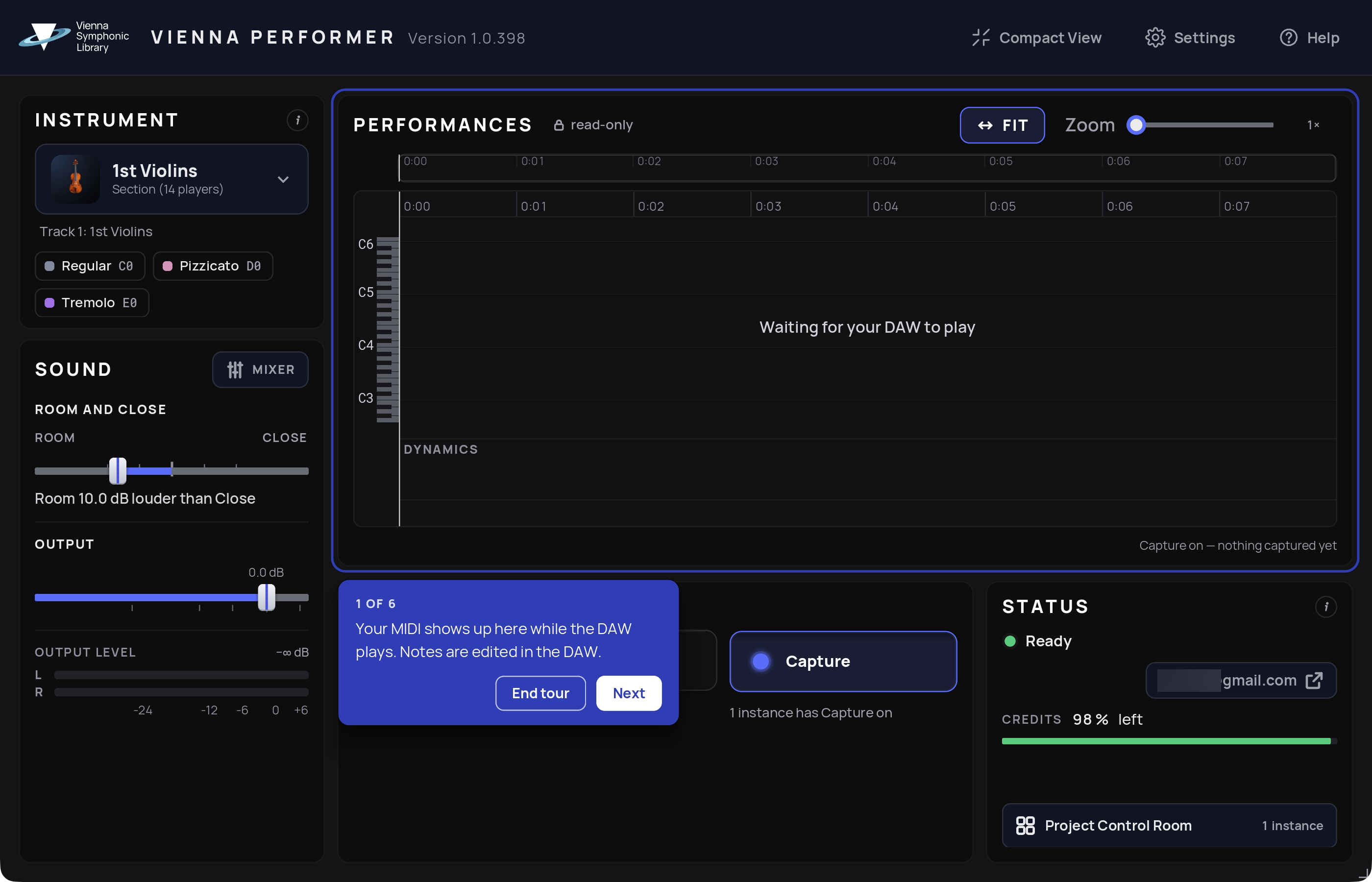
Make sure Capture is on (it is on by default) and Autorender is off.
Record-enable the track and play some notes, or write them in your DAW's editor.
While you record, the notes appear in the Performances view, grouped into blocks. Each block is one performance. You hear a preview sound while you play.
Stop the DAW. The captured performances are marked Not rendered.
Click Render on a block to render just that performance, or switch on Autorender to render everything captured in this Vienna Performer instance. Rendering uses credits.
When a block turns green (Rendered), play back the passage in your DAW. You now hear the rendered performance.