The product view shows all products organized by category. You will find the following information listed on the product tiles:
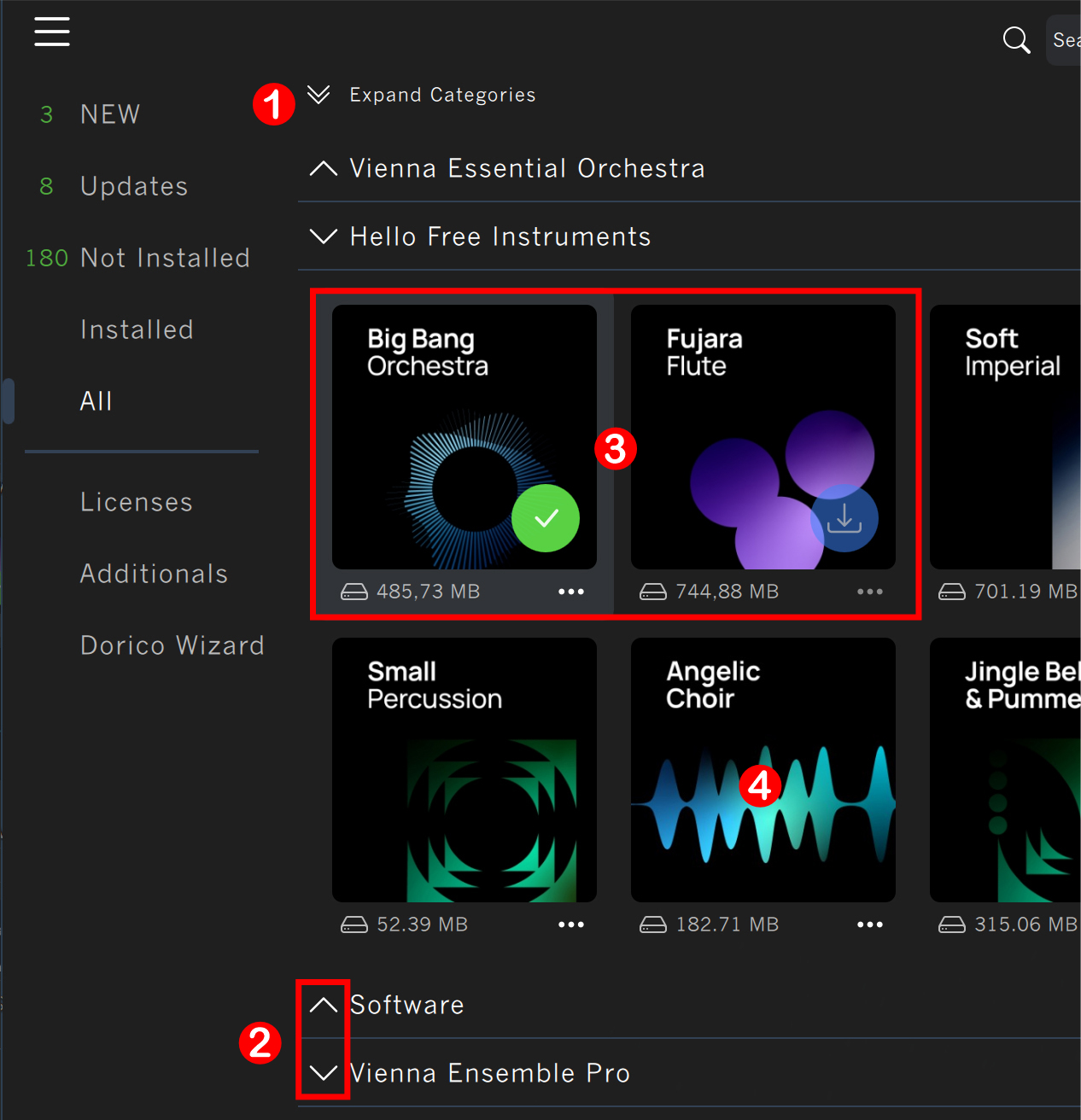
For a quick overview, all categories (1) can be expanded/collapsed with a single click. The same can be done for individual categories by clicking the up & down arrows (2) next to the category names.
Within a category, you see the individual product pictures & names (3).
At the bottom of each product tile, an info area will reflect the product's current status and product size. (4)
When hovering over a product tile, a color-coded indicator lets you check the status instantly.
Blue: Not yet installed (translucent: currently installing)
Green: Installed
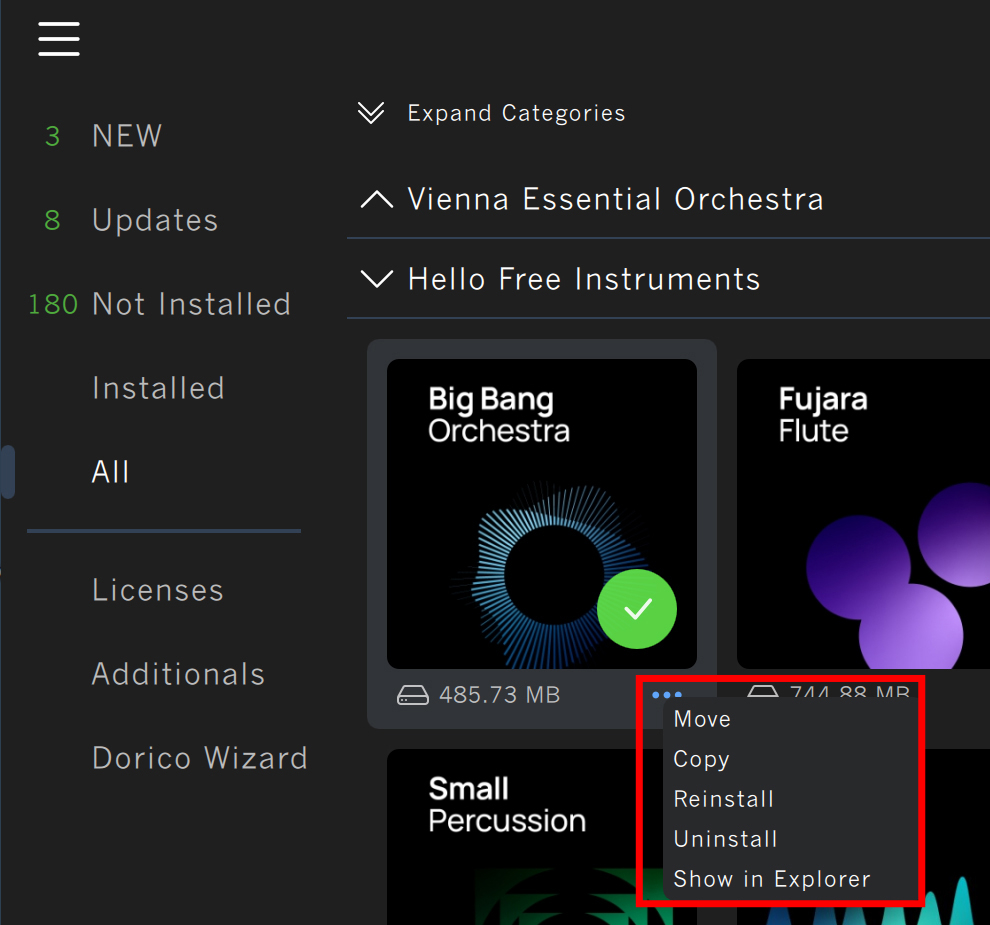
The product context menu is accessible by right-clicking the product image or by clicking the three dots in the lower-right corner. The available options depend on the product and its state.
Install downloads and install the product in one go.
Update downloads and installs the latest version of a product.
Locate [Libraries only] allows pointing to a folder containing already installed sample content.
Download [Software only] allows you to download the software installation files.
Move [Libraries only] moves your library to another location and updates the database.
Copy [Libraries only] creates a copy of the library in another location.
Reinstall will uninstall your product and download/install it again in the exact location.
Uninstall removes the product and erases the paths in the database. No recovery is possible, but the product can be re-downloaded at any time.
Show in Finder/Explorer [Libraries only], a simple way to locate your data.
Show Archive [Software only] lets you roll back to an earlier version.
Delete Preferences [Software only] will remove the settings file from the computer. Caution: This action resets all user settings to the default.
Hide/unhide in view lets you hide or unhide a product in the main view. The "Show hidden products" button temporarily toggles all hidden products on.
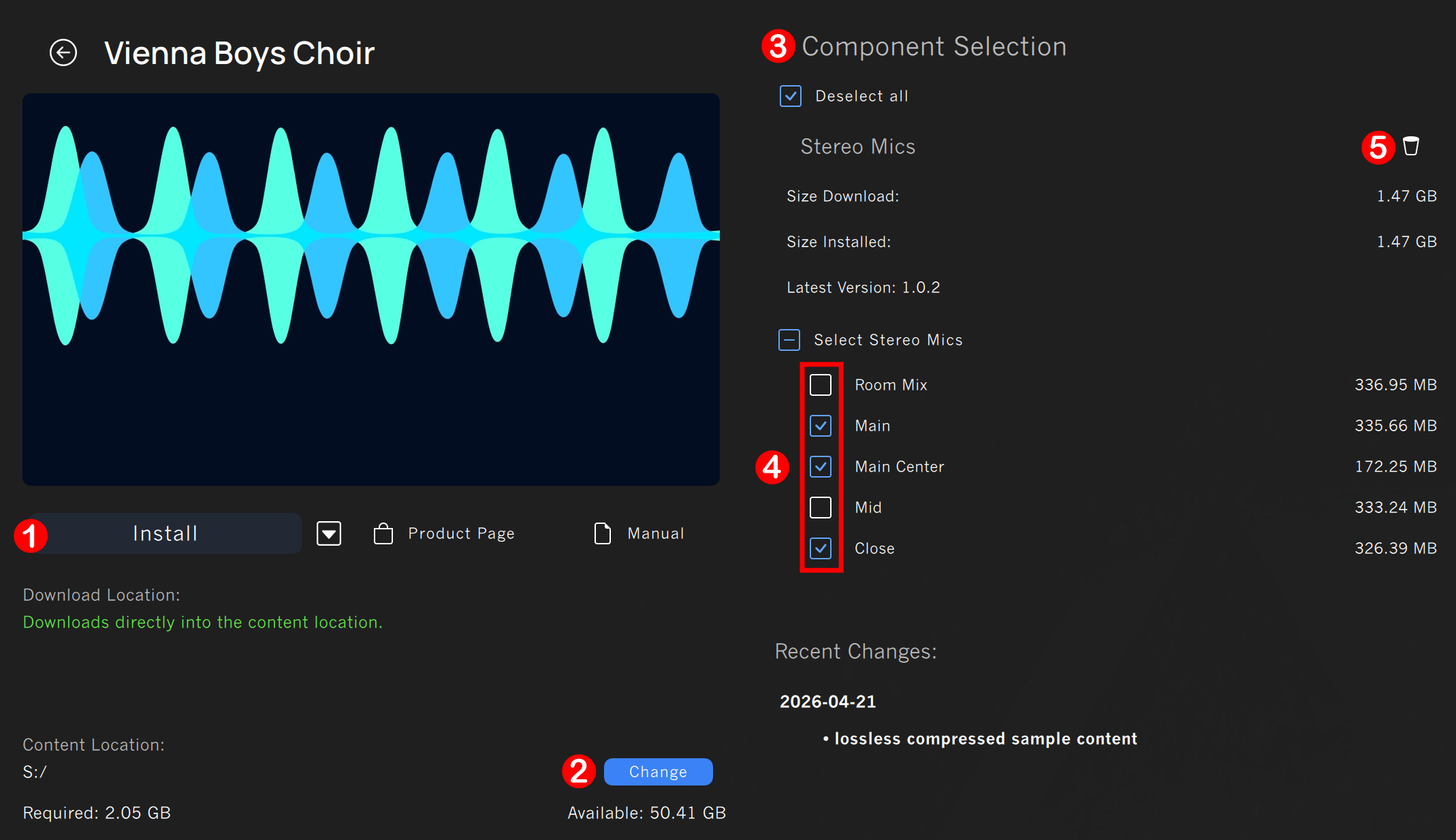
By default, the Vienna Assistant will always install all available components (e.g., mic positions and instrument sections). Clicking the large 'Install' button (1) will start the download and installation process in one go. If the product is already installed or can be updated, the button will change accordingly.
Depending on the product's current state, the download/content locations (2) can be adjusted with the 'Change' button that appears. The download path for libraries coincides with the chosen content location, which can only be selected if no parts of a library are already installed.
The Components Selection area (3) offers an overview of a product's available components, such as microphone positions or individual instruments/sections of instruments.
A glance at the checkboxes (4) will tell the status of the component.
Blue and checked: This component has not been installed but is selected for installation.
Green and checked: This component has already been installed.
White and unchecked: This component is currently not selected for installation.
Greyed out: This component is not registered to the user account.
To uninstall individual components, click the trash icon (5).
Important
Adding content to an already installed product (e.g., more microphone positions or additional instrument sections) will automatically install any additional components directly into the existing product folder.