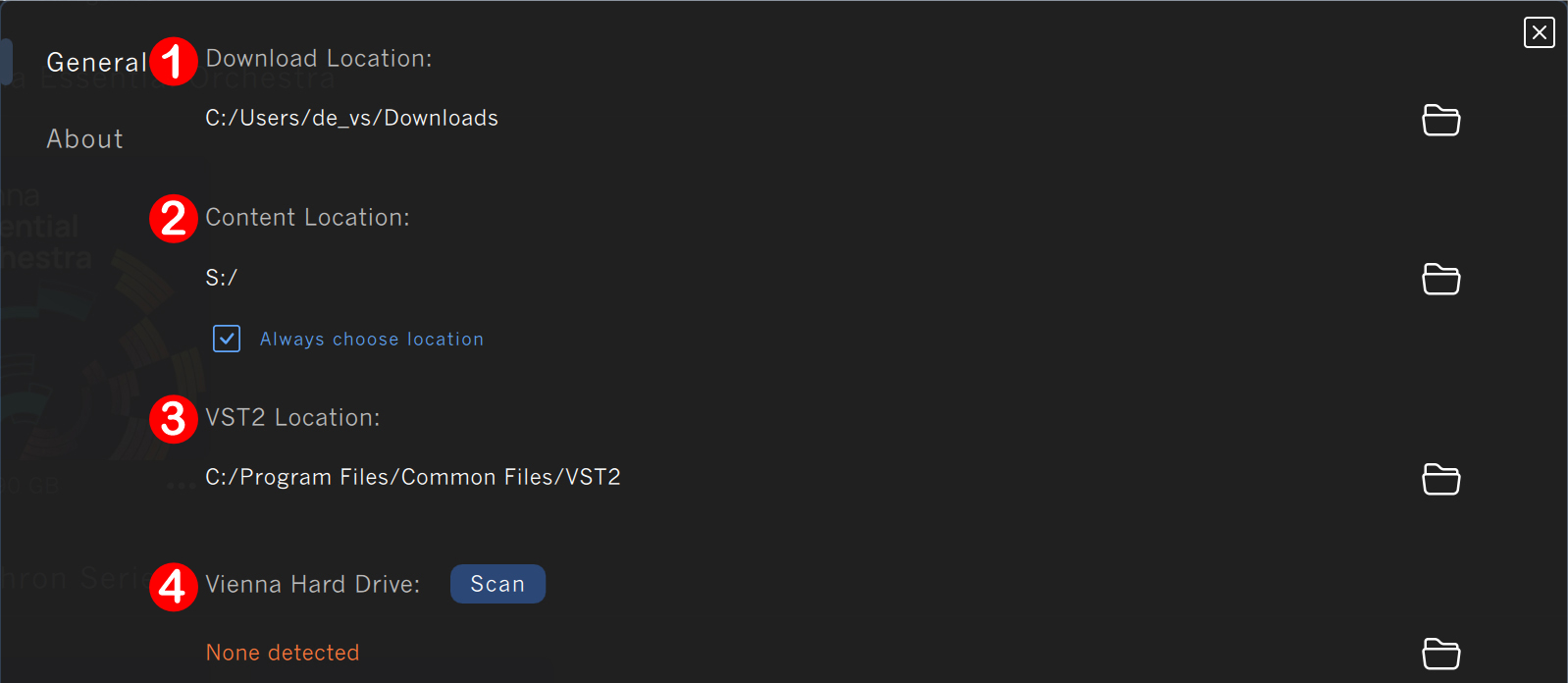
You can choose your preferred download (1) and content (2) locations. Windows users can also select a location for VST2-plugins (3).
If the "Always choose location"-option is ticked, the Vienna Assistant will show a prompt for a location before installing individual content.
If you connect a Vienna Hard Drive (4), you will see the details here. More information about offline installation can be found here.
Warning
The Vienna Assistant will always default to the set content location when installing multiple products simultaneously.
Note
VST3 plugins have a fixed location and do not require a user choice.
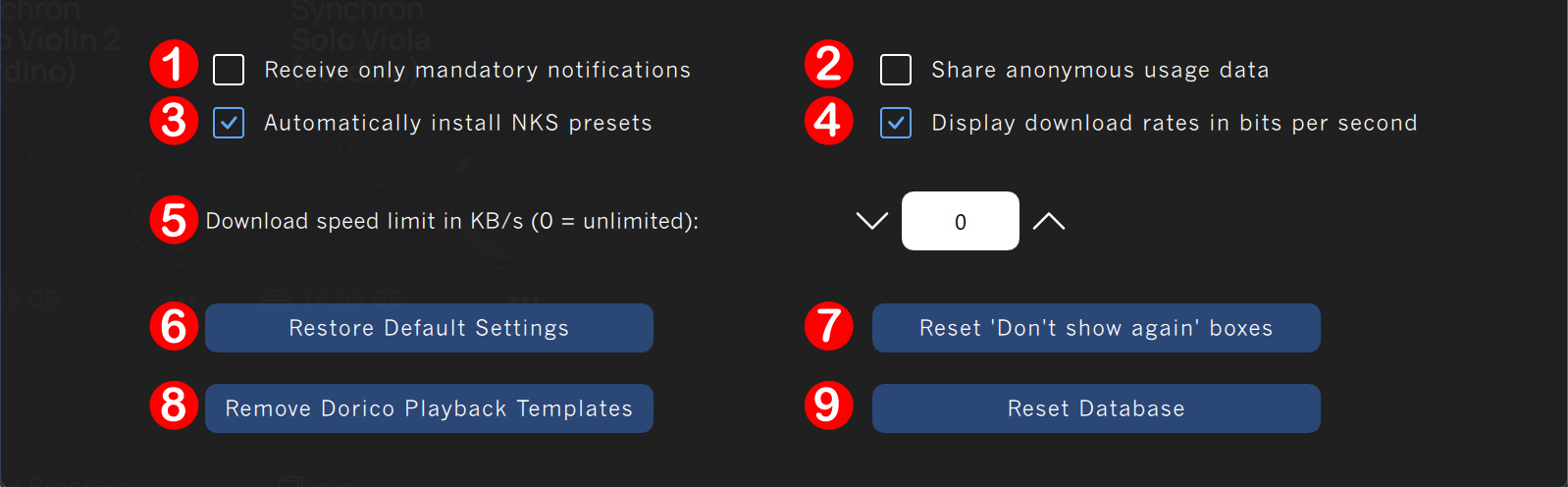
Depending on your preferences, you can toggle receiving only mandatory notifications (1) and sharing anonymous user data (2) on and off, separately.
Users with NKS-compatible hardware from Native Instruments will find the Automatically install NKS presets (3) option enabled by default if the Komplete Kontrol Software is detected on the machine.
By default, the Vienna Assistant displays all download rates in bits per second (4). If this checkbox is disabled, the rates are shown in bytes per second. Additionally, a speed limit (5) can be set here.
If desired, the Vienna Assistant's factory default settings can be restored using the Restore Default Settings (6) button.
Furthermore, you can use the Reset 'Don't show again' boxes (7) to redisplay previously suppressed alleged info boxes.
Users with a compatible version of Dorico from Steinberg installed can use the Remove Dorico Playback Templates (8) button to remove old 'VSL for Dorico' playback templates with a single click.
Reset Database (9) should only be used if there are issues with missing products inside the sample players.