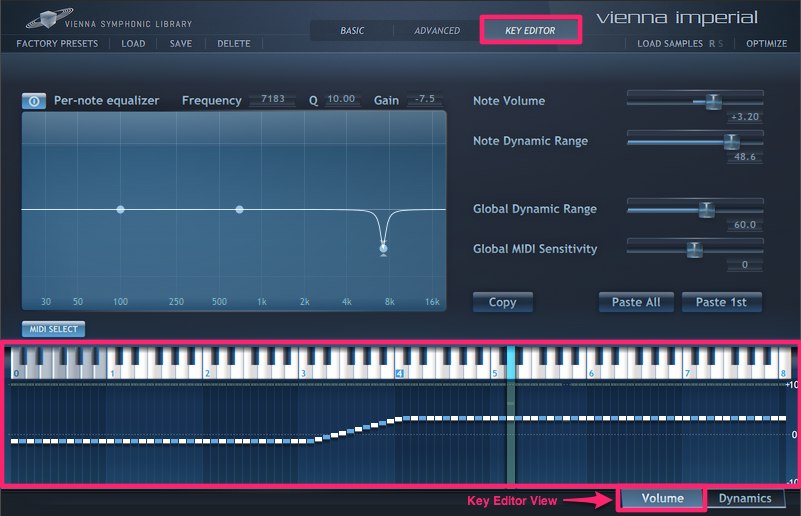
Per-note equalizer On/Off: When switched off, the Per-Note Equalizer settings will not be applied. Volume adjustments will still be applied. Useful for A/B comparison. Switched on by default.
The Per-Note Equalizer works exactly the same way as the global Equalizer on the Advanced Page (see page 11), but on a per-note basis.
Note Volume: Displays the volume level of the selected notes (if the levels are identical). It is a duplicate of the 97 sliders in the Volume Slider Area (depending on the selection).
Note Dynamic Range : Displays the dynamic range of the selected key(s). Values are also displayed in the Dynamic Range Slider Area when the Key Editor View is switched to Dynamics (see below).
Important
Frequency, Q, Gain, Note Volume and Note Dynamic Range are only available when the adjustment values of the selected notes are identical!
Global Dynamic Range: Mirrors the slider on the Advanced Page.
Global MIDI Sensitivity: Mirrors the slider on the Advanced Page.
Copy: A common "copy" function for the two available paste options described below.
Paste All: Restores all settings saved at the time of pressing Copy, regardless of the selection.
This is useful for replicating note adjustment settings for different Vienna Imperial presets, since the Adjustments Page settings are reset together with all other options, once a different preset is loaded).
Paste 1st: Pastes the EQ and Volume adjustments of the leftmost (or the only) note selected at the time of pressing Copy to the new selection (one or multiple notes). MIDI Select : When activated, the next incoming MIDI note will select the key. Switched off by default.The best way to adjust the Vienna Imperial and all available presets in a similar fashion:
- Adjust one preset to your liking.
- Save this preset to have it available later on.
- Press Copy.
- Load another preset.
- If you'd like to have the same adjustments available, click Paste All.
- Fine-tune, if necessary.
- Save the new preset.
Selection Area (Keyboard) for Volume and Dynamics View:
- Drag across to change the selection.
- Shift-drag to add to the existing selection.
- Alt-drag to remove notes from the existing selection.
- Ctrl-drag (WIN) or Cmd-drag (OS X) to auto-toggle, based on the first note clicked.
- Starting from a non-selected note will add to the selection (like the Shift key).
- Starting from the selected note – the selection will be removed, as if holding the Alt modifier.
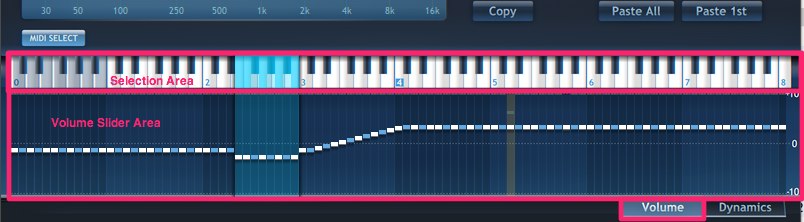
Single click outside the selection changes the selection to that note. Range: -10 to +10 dB.
Dragging the volume handles within a selection adjusts the volume levels for all selected notes.
- Right-click or double-click resets the volume levels to zero.
- Alt-drag draws a line, creates a smooth linear ramp of volumes from one note to another.When using Alt-drag, the selection is irrelevant.
- A brown background in the Volume Slider Area shows which notes have their equalizer settings adjusted (EQ Gains are not 0 dB)
- Green levels in the background show which notes have their dynamic range adjusted.
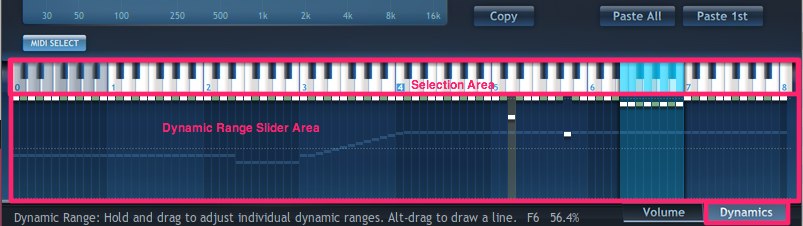
- Single click outside the selection changes the selection to that note. Range: From 0 to 100 %, depending on the Global Dynamic Range Setting.
- Dragging the handles within a selection adjusts the dynamic range for all selected notes.
- Right-click or double-click resets the dynamic range to the global dynamic range.
- Alt-drag draws a line, creates a smooth linear ramp from one note to another.When using Alt-drag, the selection is irrelevant.
- Brown background in the Dynamic Range Slider Area shows which notes have their equalizer settings adjusted (EQ Gains are not 0 dB)
- Blue levels in the background show which notes are volume-adjusted.