The Vienna Ensemble Pro GUI will open in the background of your sequencer or on your networked computer. Hover with your mouse over GUI elements to see a description in the lower left corner (with the corresponding shortcut, if available)! Most elements will also show direct mouse-over messages.
The taskbar in the upper left corner contains the following icons:

Enable/Disable Instance
Start/Stop Engine
Start/Stop Transport
New Project: create a new project from scratch
Open Project: open your saved projects: *.vep64
Save Project: save your projects as *.vep64 files
Preferences
Master Tuning: Changes the tuning of all inserted VSL Instruments
Show Automation Mapping
Show Channel Sets
MIDI Activity Focus: Will automatically switch to the channel that has been soloed in your sequencer, or the only channel that is receiving MIDI signals at any given time. By design, this convenient feature works with 1 MIDI channel only.
Auto-Add MIR Pro will automatically add a MIR Pro insert to each new channel. It is only visible if a MIR Pro license is available.
Enable/Disable Keyboard Shortcuts
Unsnap/Snap the active Instance in the server window.
Preserve disconnects your Vienna Ensemble Pro instance from your sequencer, keeping all the samples loaded (more information)
Decouple/Couple Instance (more information)
Connection monitor: when a Vienna Ensemble Pro Plug-in in your DAW connects with the server, this icon begins to flash. By clicking on it you can choose to load / discard plugin data.
This button shows the color of the selected instance. Click on it so choose another color.
In the lower-left corner, you can add instrument channels, busses etc. to your current instance. The new channel is inserted after the currently selected one.
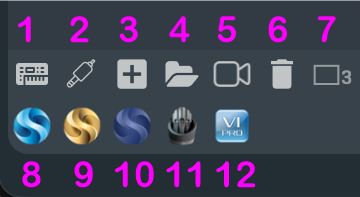
Virtual instrument plug-in (AU/VST)
Input channel
Bus channel
Folder: you can organize channels in collapsible folders for better overview.
Video Pro: with an active license, you can add and synchronize videos to your project.
Bin: delete the selected channel(s).
Narrow channel strip view: switches between three different zoom stages of the left-hand channel strip.
Synchron Player
Piano Player
Harp Player
Organ Player
Vienna Instruments Pro.
In the lower right corner, you will find some more information available for each connected instance.

The values displayed are Channel Configuration, Tempo (BPM), Plug-in Latency Compensation (in samples), and CPU Meter.
Note: Plug-in Latency Compensation can be disabled in Preferences.
Move channels in the Channel Pane or Mixer according to your preferences. You can collapse single channels (in the mixer) and expand and collapse all channels by holding down Shift:
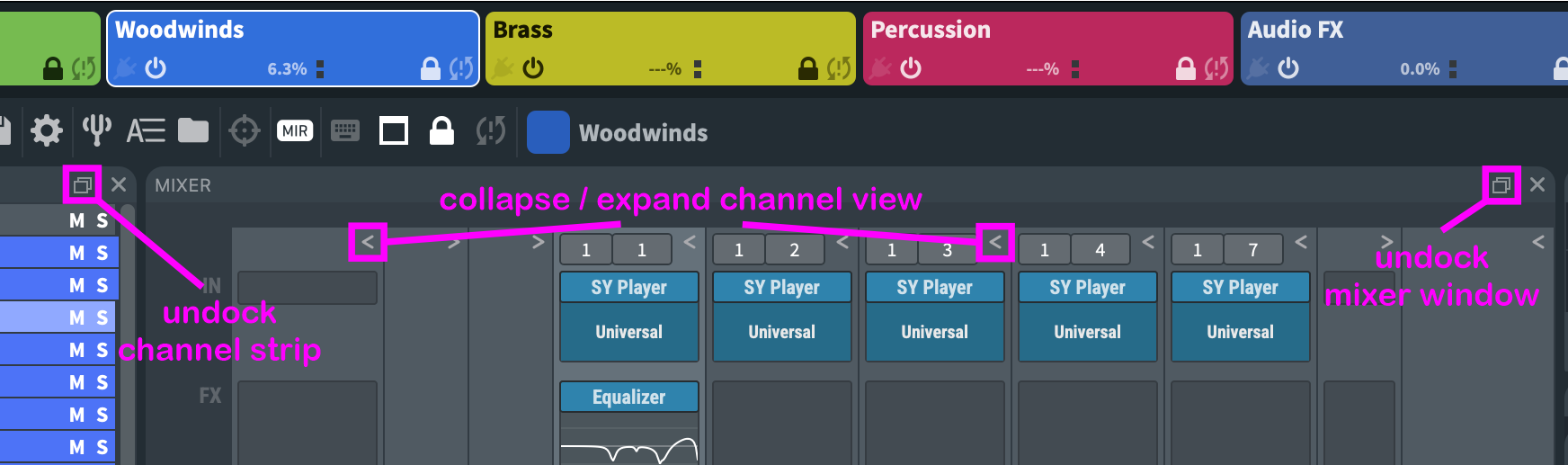
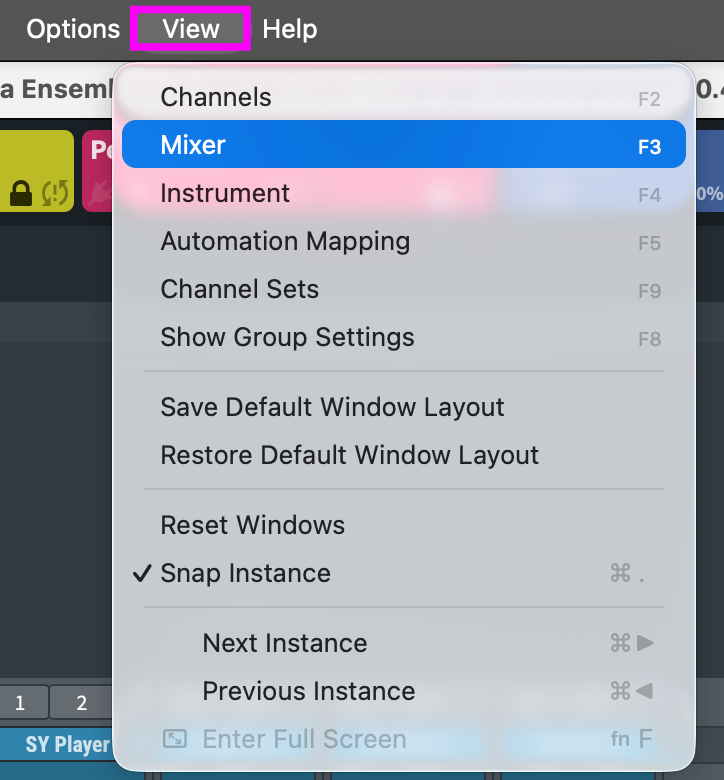
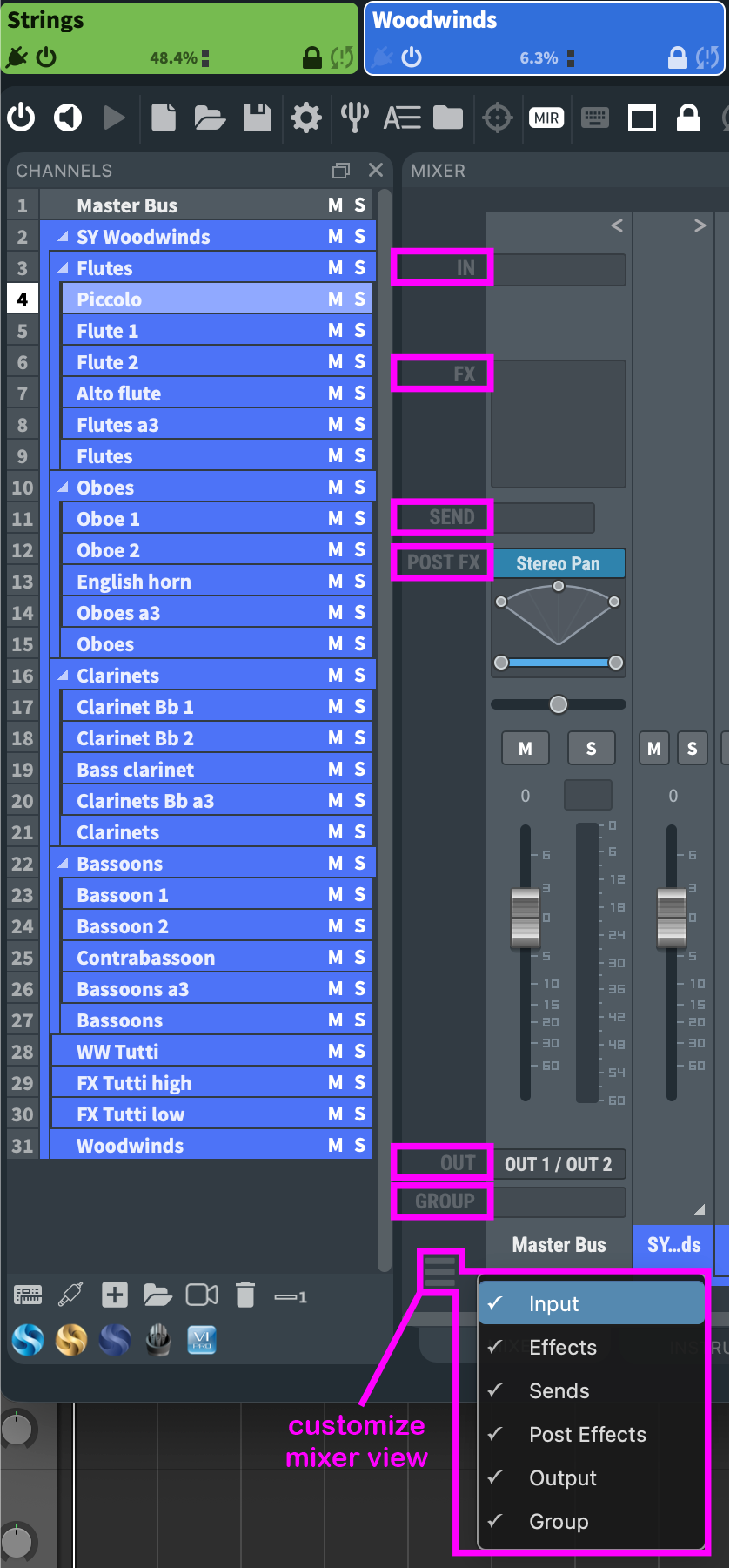
It is possible to undock the Mixer, the Channel Pane, Automation Mapping, the interfaces of all virtual instruments, and MIR Pro (if available) to use these windows in separate windows (or on a second screen). To customize your mixer view, choose which mixer elements should be displayed in the lower-left corner of the mixer:
Organize your template by creating folders and subfolders. To drag channels into a folder, select the channels you want to move and drag them into the upper part of the folder until you see a small gap at the end of the orange line that shows up, then drop the channels.
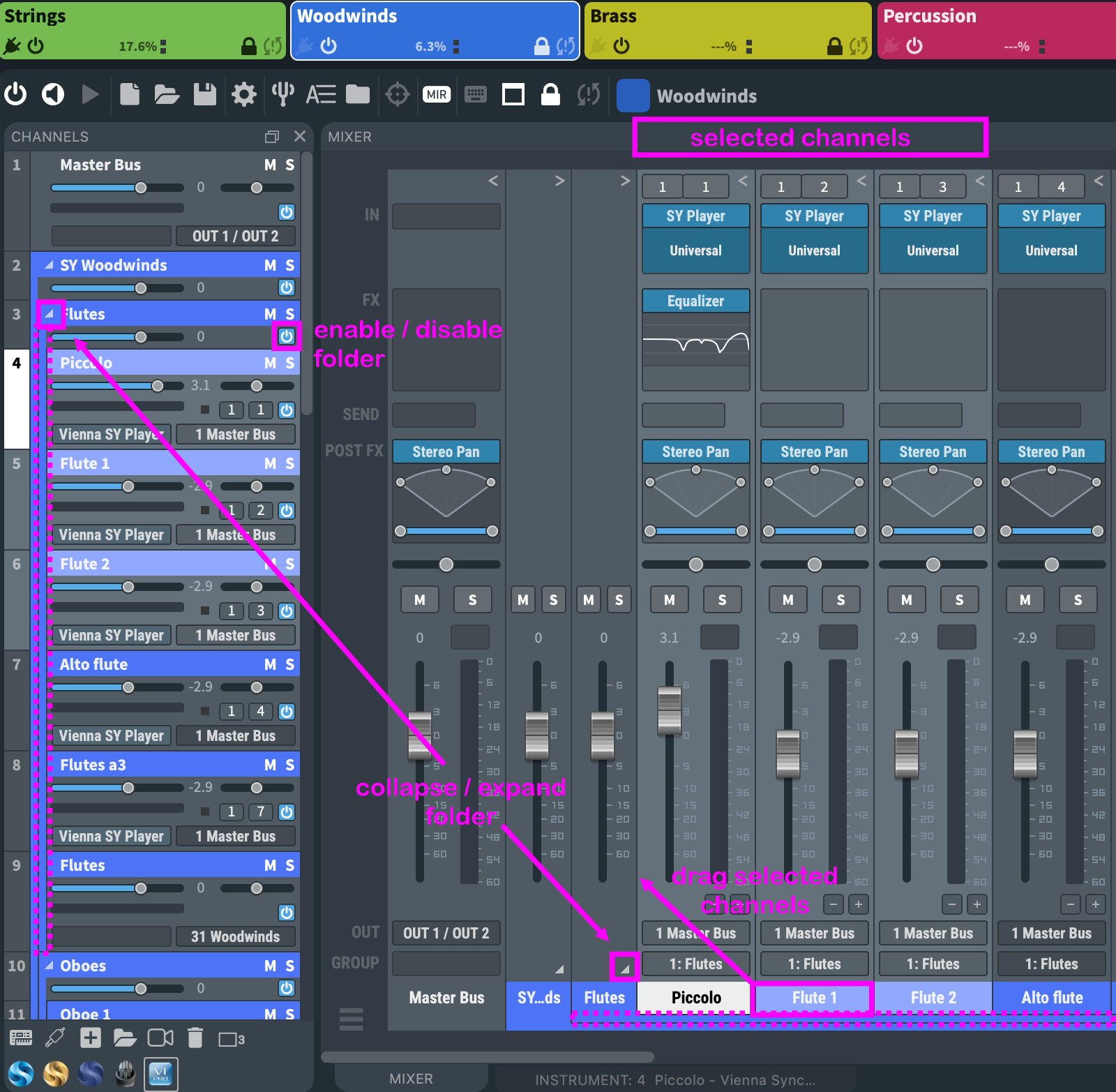
You can expand and minimize each folder by clicking the small arrow in the folder channel. You can now also enable and disable folders, and this feature is automatable, too! Each folder will create an extra line for orientation, which will be displayed in the color of the folder.
Disabling a folder by clicking on its on/off button in the channel strip does not inherit its status to its children, i.e., although effectively disabled, they keep their individual enable status. Re-enabling the folder thus returns to the same status as before.
Enabling and disabling Vienna Ensemble Pro instances and folders unloads all plug-ins and their allocated memory from the selected channel(s) while keeping data intact. As with individual channels, the power button will initiate unloading the sample content of the contained tracks, while keeping the sample location stored. This way, you can free up your RAM and CPU while being able to reload all plug-ins just like you left them. You can also automate enabling/disabling instances, folders, and channels with Vienna Ensemble Pro's Parameter Automation, so you are able to load certain setups while your project is playing back.
A useful option to keep your templates small, as you can enable whole instances with just a few clicks!
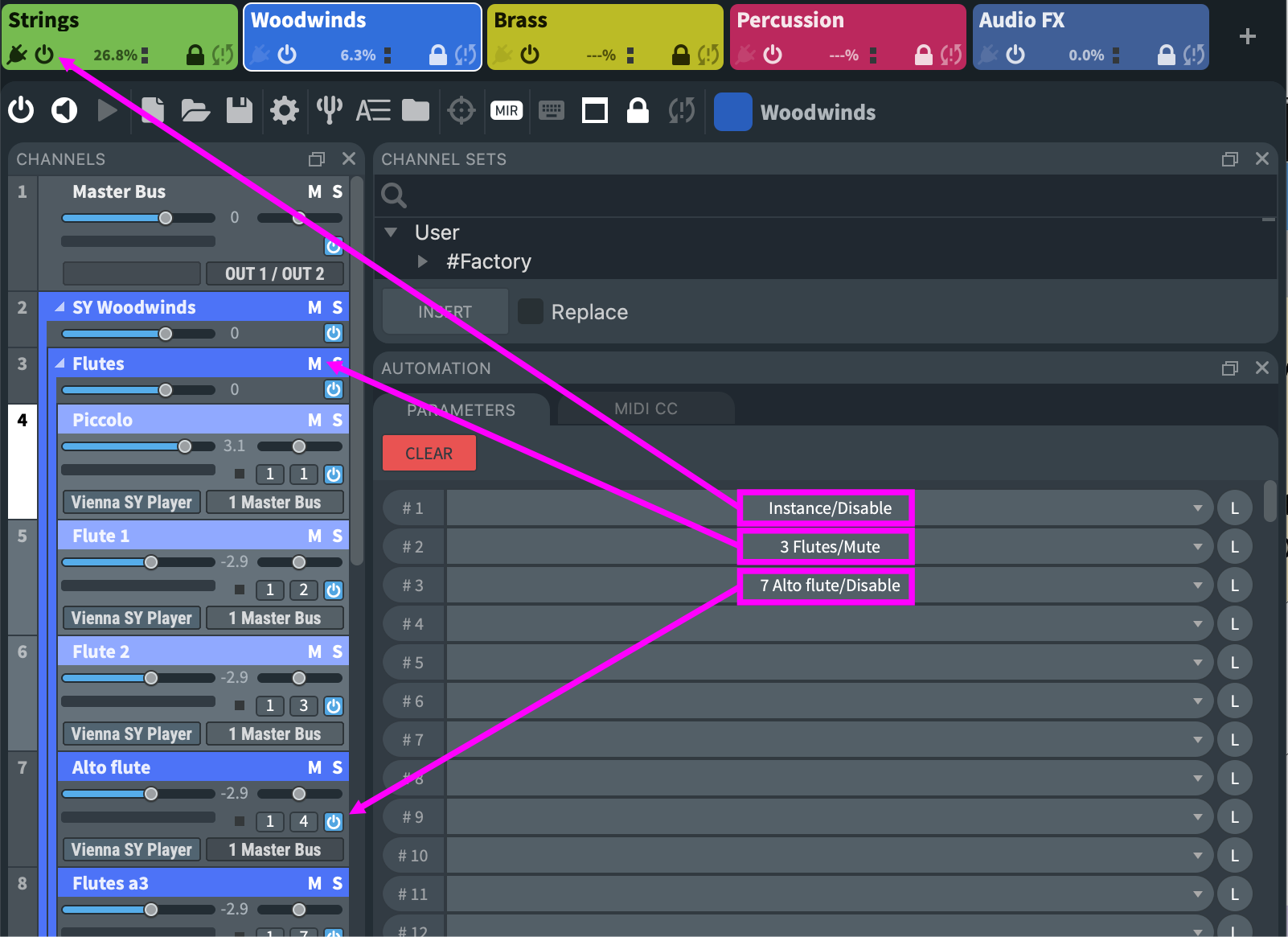
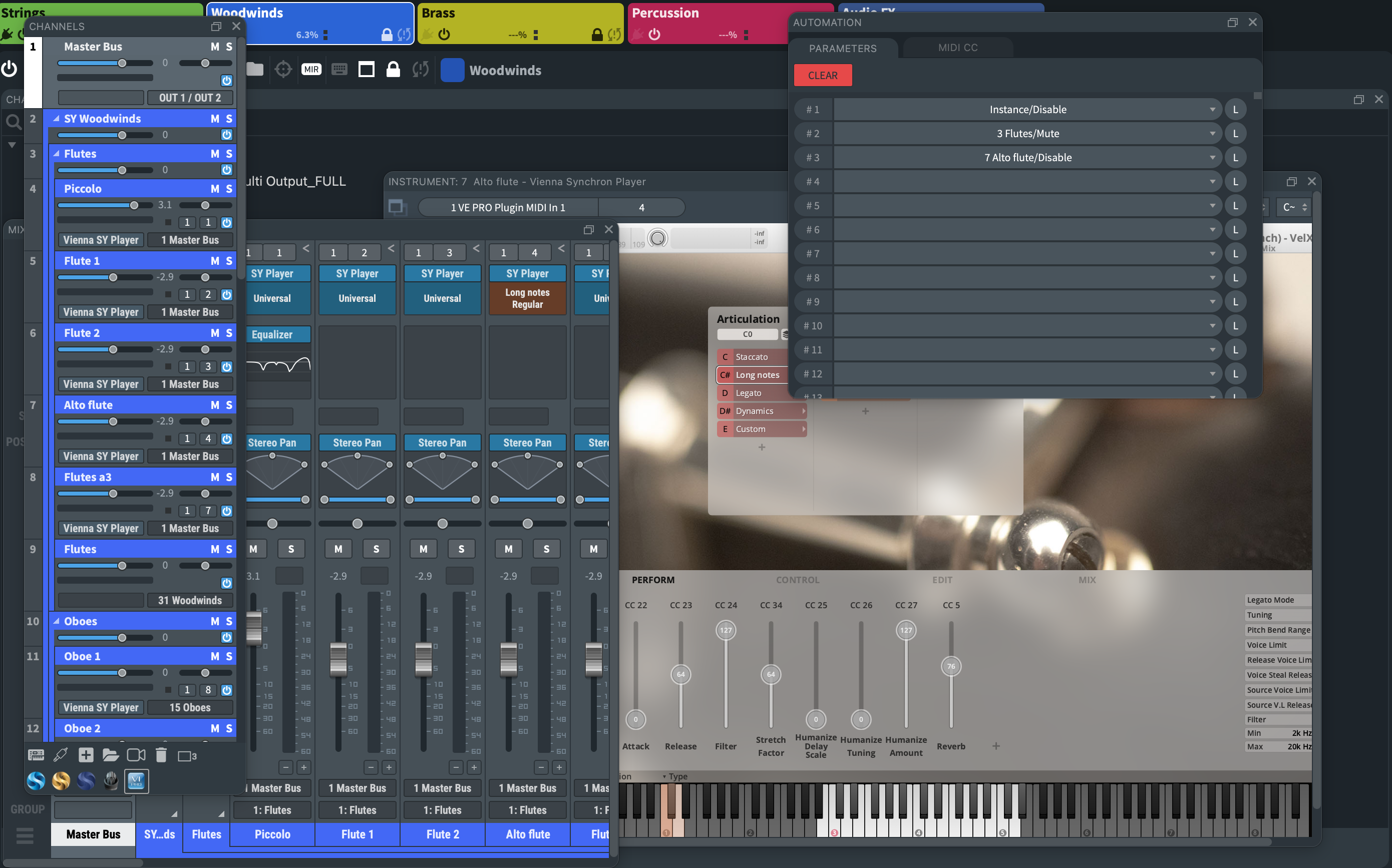
To undock a window within an instance, double-click its title bar or click the small undock button in the upper right corner. To dock an undocked window again, double-click its title bar. To re-arrange a docked window, simply click and drag its title bar over the main window.
Indicators will be displayed when you’re placing the window over a valid location on the main window.
The Instrument window offers the option to unsnap individual instruments.
The big "unsnap " button in that window lifts that particular instrument's user interface out of the shared area and makes it a free-floating window.
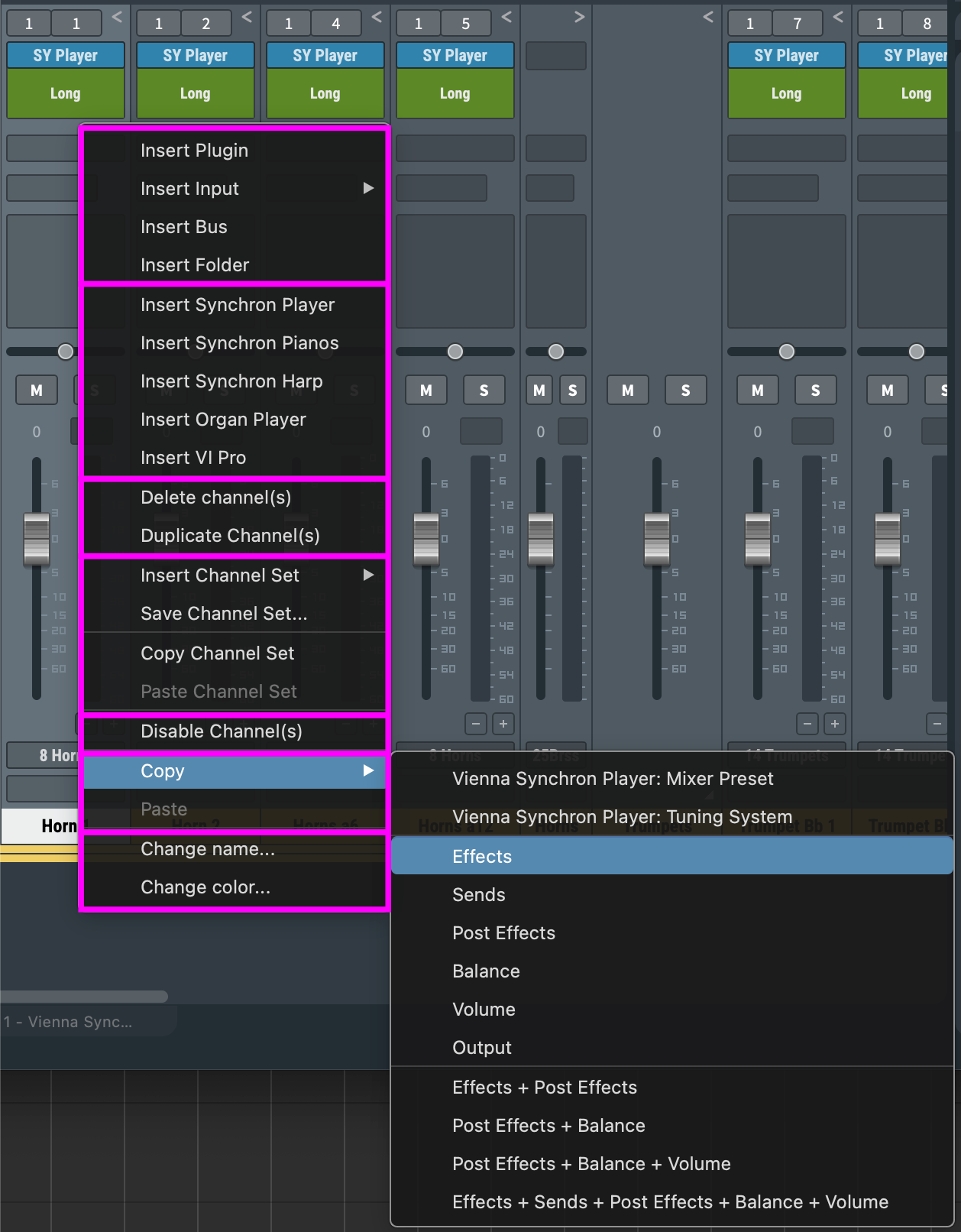
Right-click on the channel you want to change, and you will get the following options:
Insert plugins, inputs, busses, folders
Insert VSL instrument channels
Delete/ duplicate channels
Insert Channel Sets from disk (all settings and loaded samples on selected channels), and
copy/paste Channel Sets to/from cache
Enable/disable channels
Copy/paste: you can copy and paste specific parameters of each channel.
Define the name and color of selected channels.
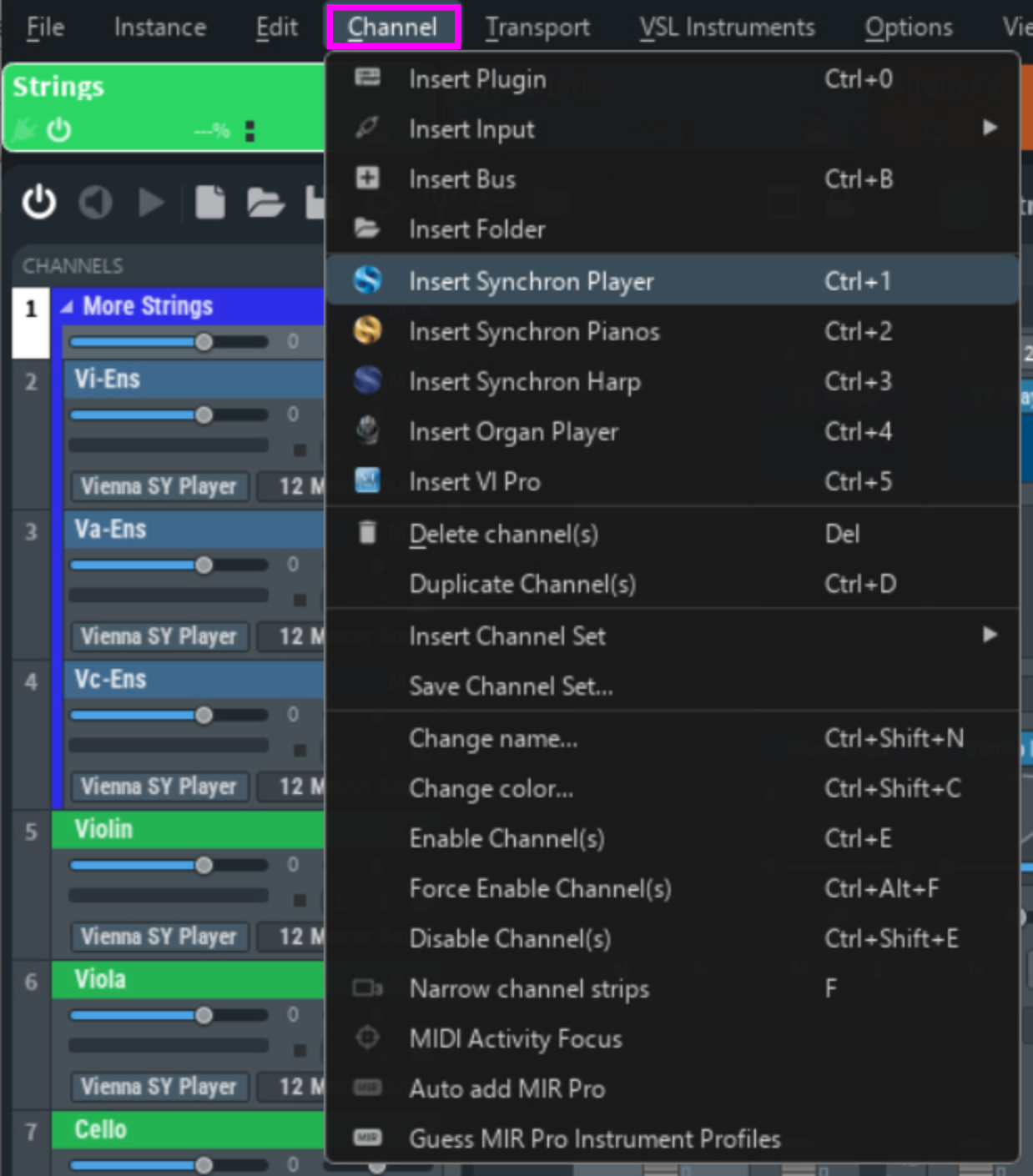
As already described, merging existing projects (of course also from older Vienna Ensemble templates) is possible on the Instance level, where you can select individual channels to import from .vep files, and in the Files menu to import selected instances from a Server Project file.
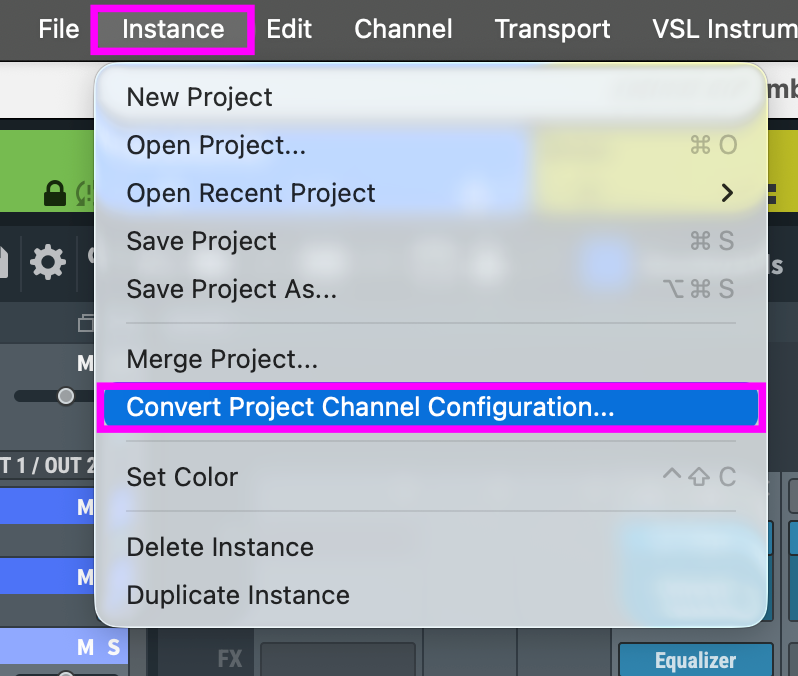
You can also convert a project/instance to a different channel configuration. This is a very useful option to convert a stereo project to any surround configuration: instead of opening a .vep file in the regular way, load the desired project using this conversion option.
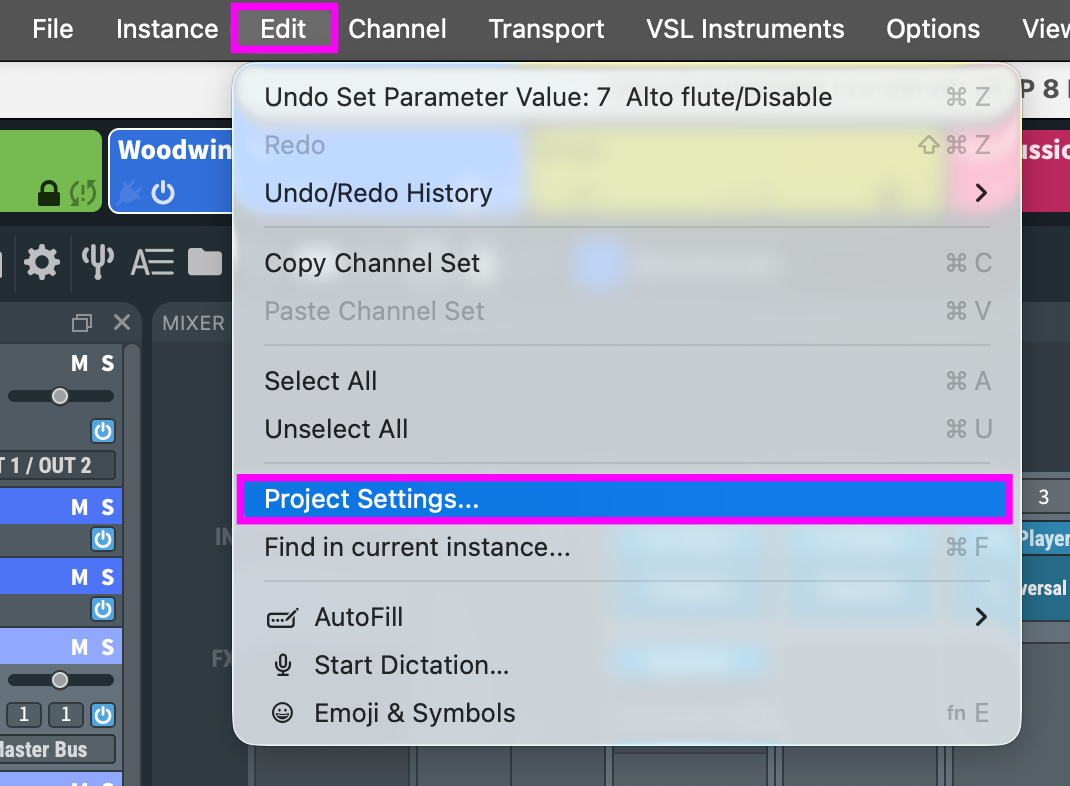
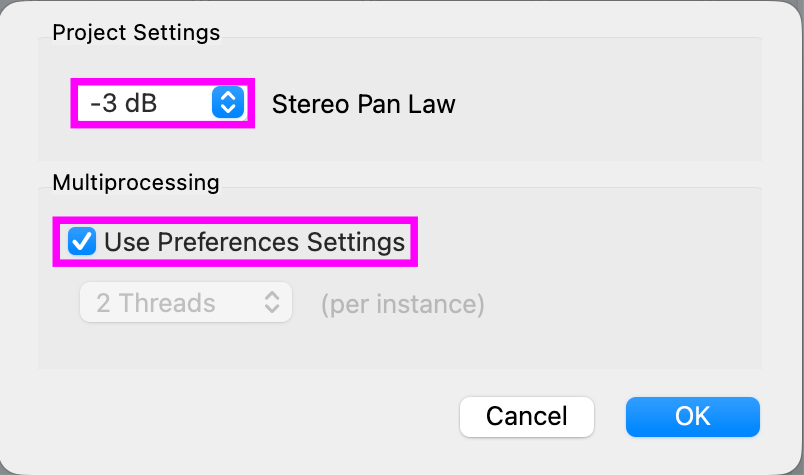
There also is the option to set a pan law both as a default setting and a per-project setting, which applies to all included panning plug-ins. Likewise, you can set threads preferences per project.