Two switches control when Vienna Performer listens to your DAW and when it renders: Capture and Autorender.
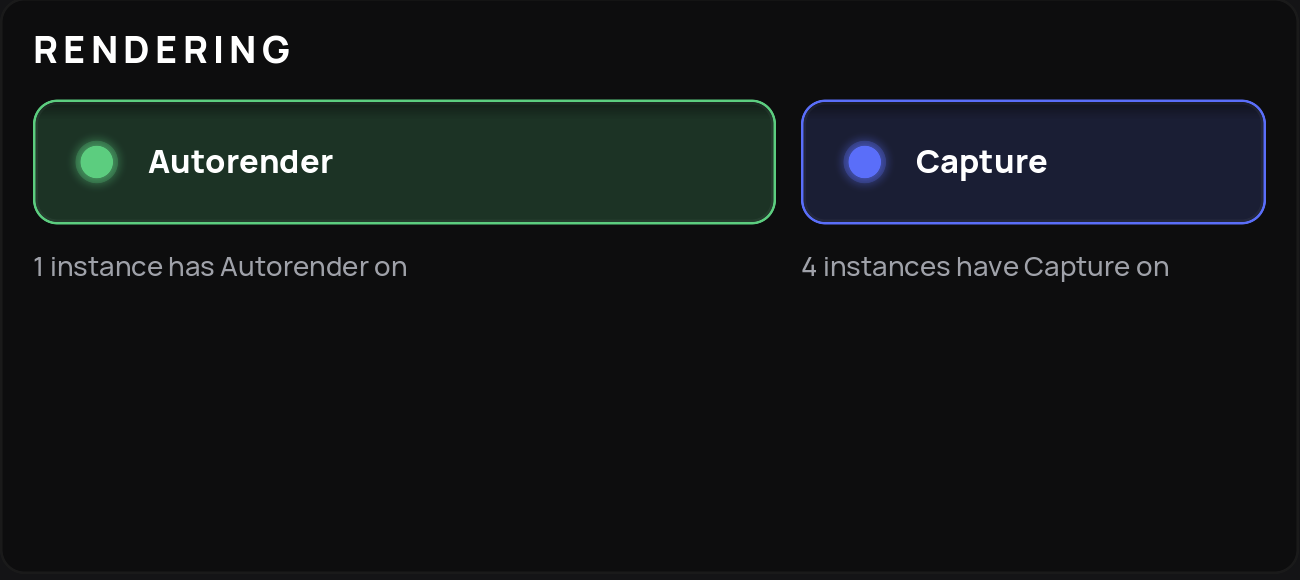
When Capture is on, Vienna Performer reads the MIDI your DAW sends to this track, during recording and during playback. Only captured MIDI counts: after changing notes, a keyswitch or CC1, play that passage again with Capture on. Expression (CC11) needs no new capture, because it only changes the volume of the renders. Capture is on by default.
Tip
When you have finished working on a track, you can switch Capture off. The track then simply plays its renders.
When Autorender is on, every captured performance that is not rendered yet is sent to the render servers. Autorender is always off when a project is opened, in every instance, so opening a project never renders and no credits are spent until you decide. This cannot be changed in Settings.
With Autorender off, you can still render single performances with the Render button on each block in the Performances view. Performances that are already rendered always play back, whether Autorender is on or off.
Note
Below each switch, a short note shows how many instances in the project have it on, for example "2 instances have Capture on". It appears as soon as any instance has the switch on, even if it is not this one. This helps you not to leave Capture on by mistake on tracks you are not working on.
Renders longer than 10 minutes: per Vienna Performer instance, a continuous performance with no break of 2 seconds can be at most 10 minutes long. A longer one is shown as an error and is not sent to the render servers, so no credits are used. Give the performer a break: real musicians also need one to catch a breath. If the passage really has to play without a break, split it across several Vienna Performer instances.
Failed renders: if a render fails, the performance turns red and no credits are used. This can happen when you do not have enough credits for the performance. In that case, a tooltip tells you that there are not enough credits left to render when you hover the mouse over the failed render. Buy top-up credits on the Vienna Performer page of My VSL and start the render again. In other cases, Vienna Performer retries on its own if the render servers report when to try again. Otherwise the performance stays red until you start another render.
Recommended settings
Keep Capture ON only for the instance whose MIDI you are currently working on. If you leave Capture on all the time, its performances can be overwritten unintentionally, for example when you solo an instrument part in your DAW's MIDI editor. Autorender sends every captured edit to the render servers, and each render uses credits. Turn it ON only when you intentionally want to render something, and keep it off while you collect several changes.
The modifier keys work on both switches, in the main window, in Compact View and in the Project Control Room:
Click: toggles the switch for this instance.
Cmd-click (macOS) / Ctrl-click (Windows): sets the switch on all instances in the project.
Option-click (macOS) / Alt-click (Windows): switches it on only here: on for this instance, off for all others.
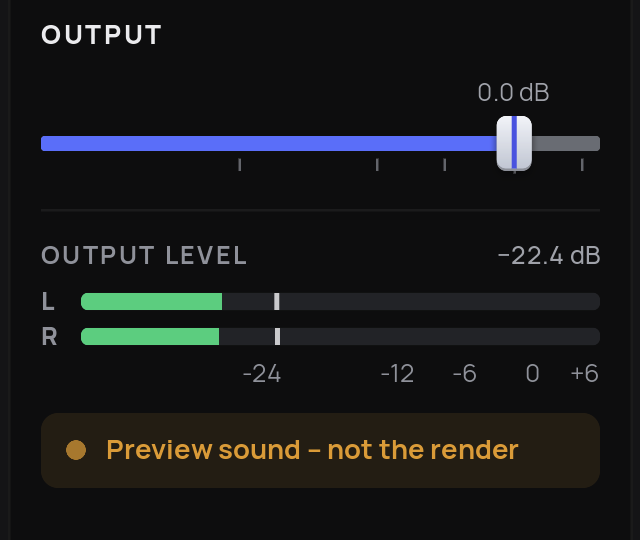
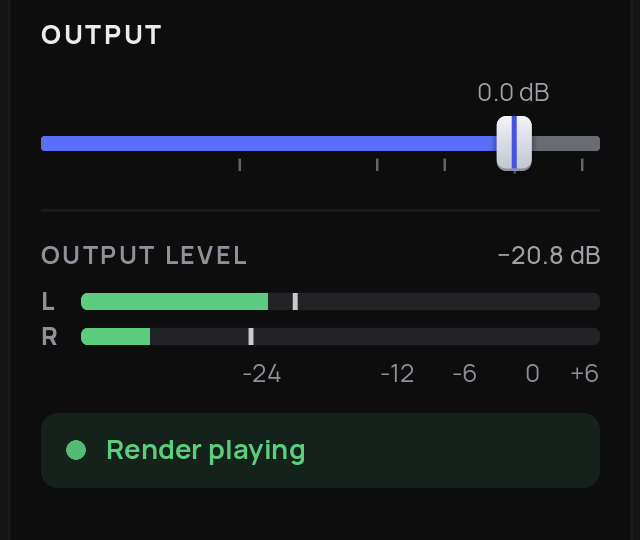
Until a performance is rendered, you hear a preview sound instead, also while you record. The preview sound is a simple placeholder and is meant to sound clearly different from the render, so you always know what you are hearing. If the preview sounds could not be loaded, a sine tone plays instead. Like the renders, the preview sound is monophonic: it plays one note at a time. In a bounce, passages that are not rendered yet contain the preview sound with soft pink noise. The pink noise is intentional, so that you notice them.
The indicator below the output meter shows whether you are currently hearing renders or the preview sound.
Every render uses credits. One credit is one second of rendered audio. What counts is the length of the rendered audio (render time), counted in steps of 10 seconds. The Status area shows your remaining credits in percent.
Your plan gives you a monthly allowance of credits, which is used first and is valid until your plan renews. Top-up credits never expire; they are used only once the monthly allowance is spent. You can buy them on the Vienna Performer page of My VSL (click your account email in the Status area).
Vienna Performer avoids paying twice for the same performance:
Renders are reused. If a performance was rendered before (after an undo, after reopening the project, or after switching back to an instrument), the existing file is loaded instead of rendering again.
Warning threshold. If one action would render more than the set length (2 minutes by default), Vienna Performer asks before it starts. Set the threshold to 0 to switch this warning off.