The Status area shows whether Vienna Performer is ready to render, and your credit balance.
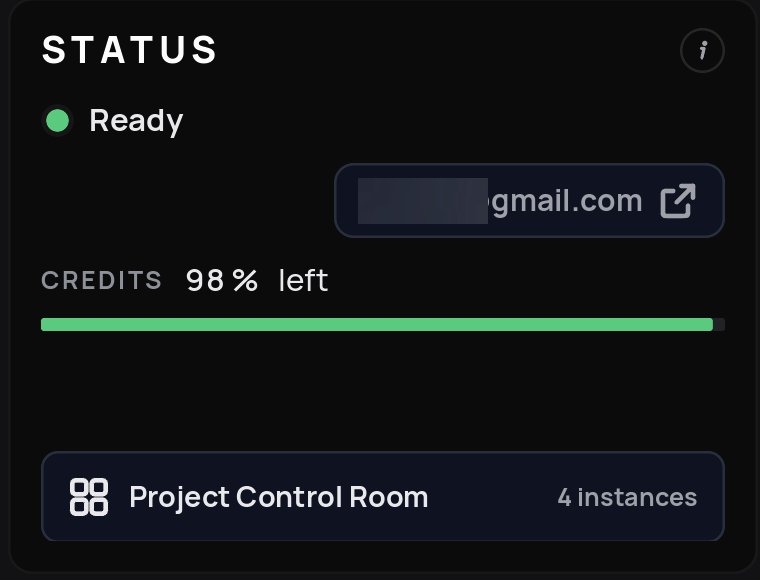
Ready (green dot): connected to the render servers and ready.
Not ready (orange dot): the plugin has no project folder set.
Not ready (red dot): you are signed out. Sign in with the Sign in button in the red banner or in the Status area (see Signing in).
Account: shows your account email (or Sign in when you are signed out). Click it to open the Vienna Performer page of My VSL in your browser. There you see your plan, your credits and your usage this month, and you can manage your subscription, change or upgrade your plan and buy top-up credits.
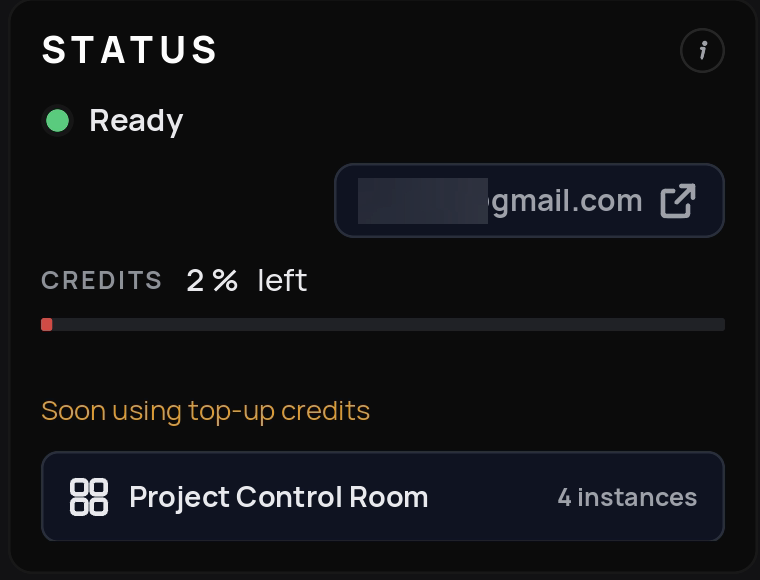
Credits: the share of your monthly credits that is left, in percent. When it runs low, it is shown in a warning colour. A line above the Project Control Room tells you about your top-up credits:
Top-up credits available: top-up credits have been added to your account.
Soon using top-up credits: your monthly credits are nearly used up, with 5 % or less left. This message is orange.
Using top-up credits: your monthly credits are used up, and your top-up credits are being used. The colour of this message shows roughly how much render time your top-up credits still give you: green for 30 minutes or more, orange for less than 30 minutes and red for less than 10 minutes. You can see the exact amount in My VSL.
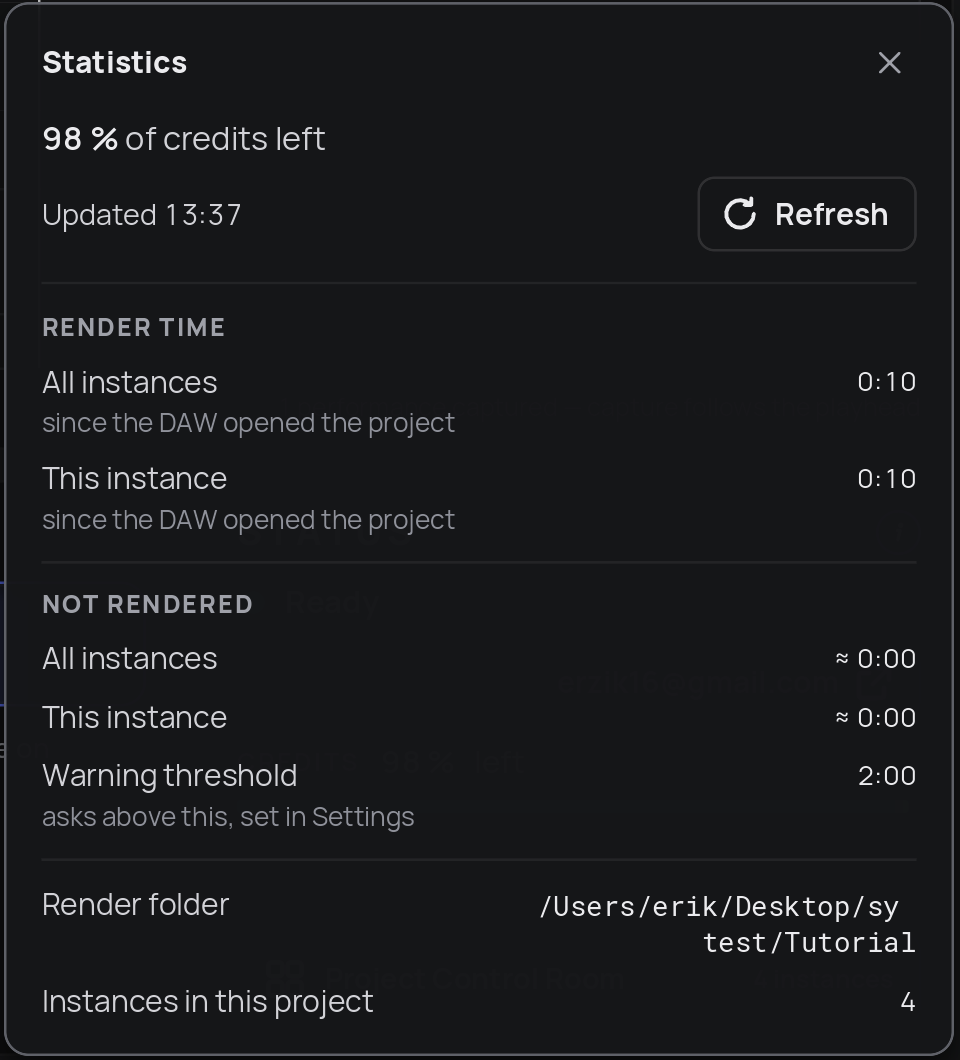
i: opens Statistics: your remaining credits (with Refresh), the render time used since your DAW opened the project and the render time still not rendered (each for all instances and for this instance), the warning threshold, the render folder and the number of instances in this project.
Project Control Room: opens the Control Room. The number shows how many Vienna Performer instances the project contains.
The Project Control Room lists every Vienna Performer instance in your project, so you can control them all from one window.
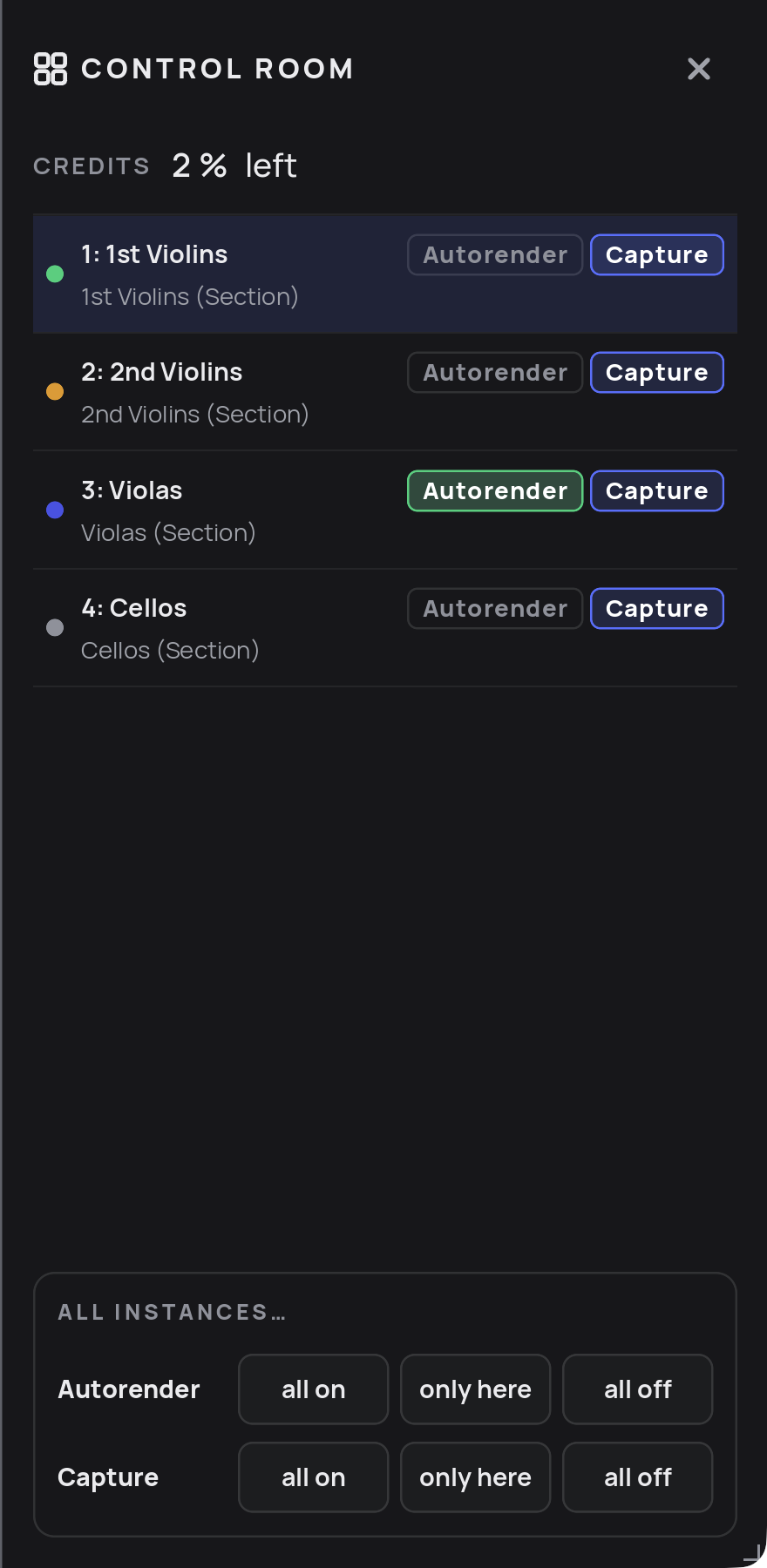
Credits left: the percentage of your credits that is left. For details, open Statistics (i in the Status area) or My VSL.
Instance list: each instance with its track number and name (as read from your DAW), its instrument, its own Autorender and Capture switches, and an LED. The current instance is marked "this window". When you rename a track in your DAW, the name updates here. Not every DAW passes on the track number; when it does, the list is sorted by track number. The LED shows:
Grey: nothing is captured.
Orange: some performances are not rendered yet.
Blue: it is rendering.
Green: all its performances are rendered.
Red: a render failed.
All instances: sets Autorender or Capture for the whole project with all on, only here (on for this instance, off for all others) or all off. These buttons do the same as the modifier keys.
Close the Control Room with the X button.