The Instrument area shows the loaded performer and the techniques it can play.
Click the instrument name to open the list of instruments and select another one, or choose Browse all to return to the Welcome screen.
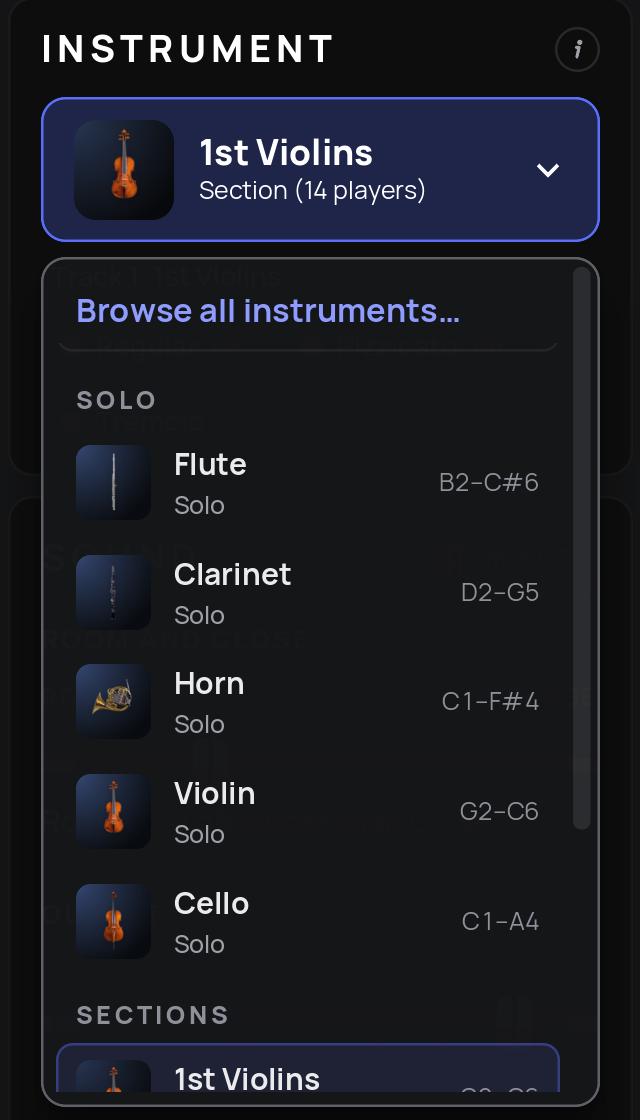
When you change the instrument, a banner informs you. Existing performances are not rendered again automatically, so switching does not spend credits by accident. If renders for the selected instrument already exist in the render folder, Vienna Performer finds them and loads them without rendering again.
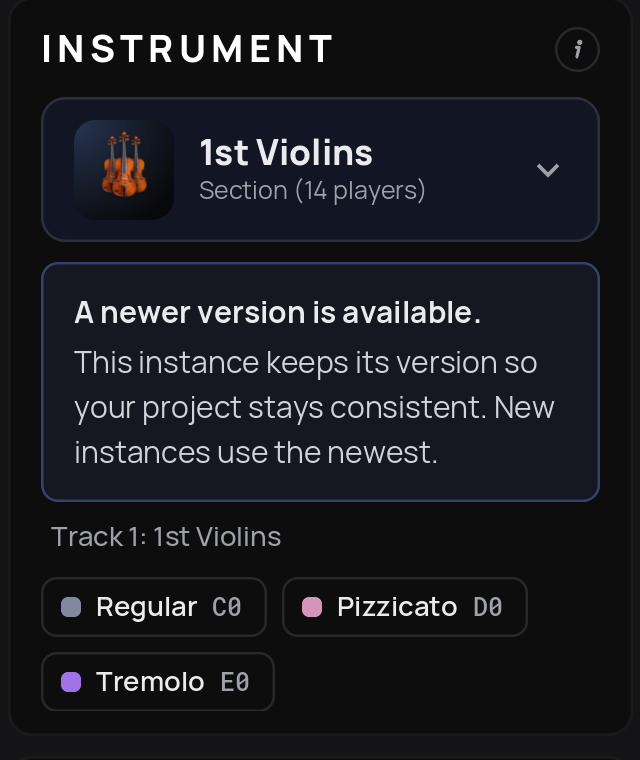
Model updates: when a newer version of an instrument is available, the Instrument area shows A newer version is available. The instance keeps its version so that your project stays consistent. New instances use the newest version. To use the newer version in an existing instance, switch to another instrument and back: for example, briefly load the 2nd Violins and then the 1st Violins again. If you want your performances to use the newer version, render them again.
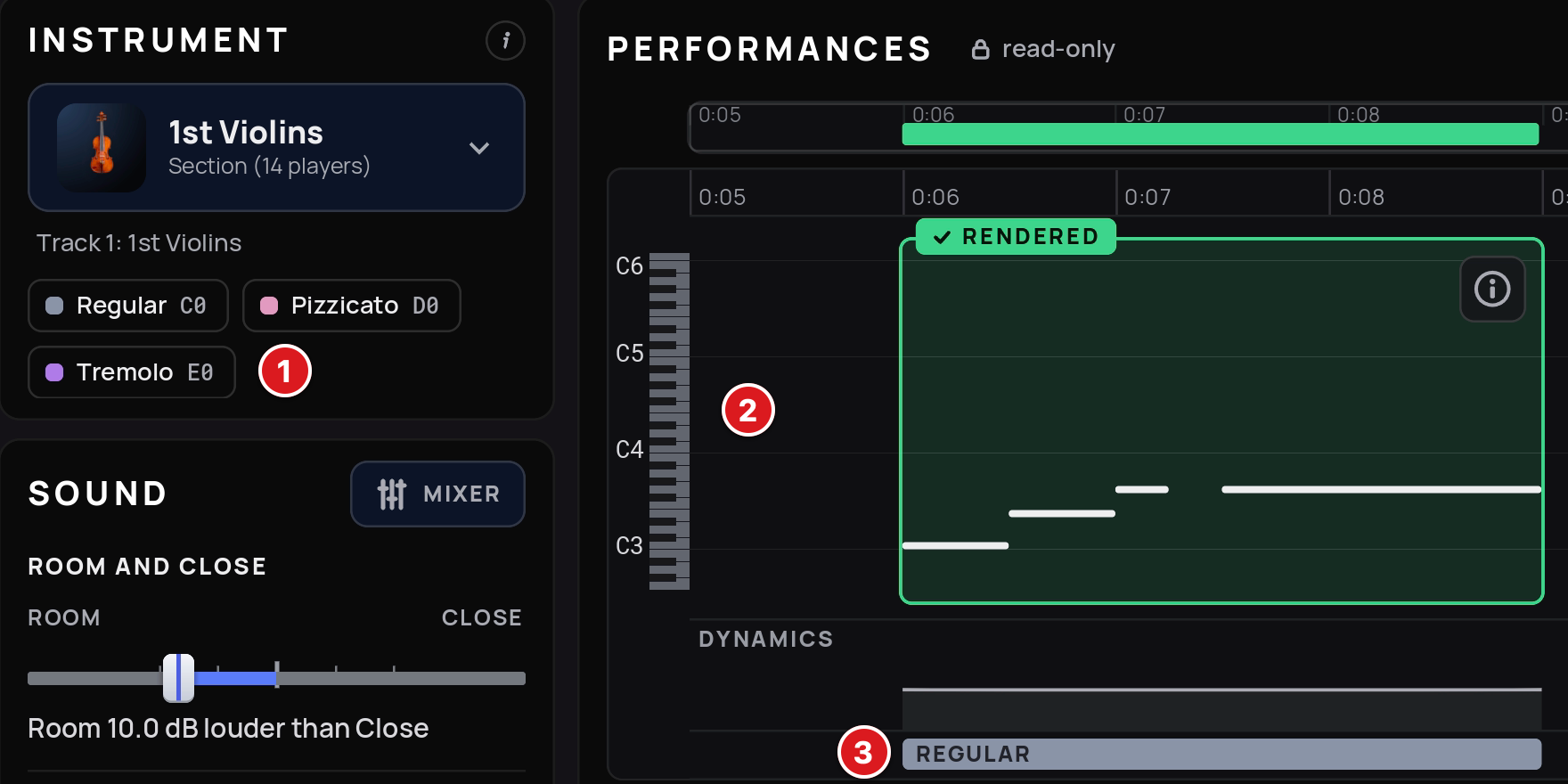
The techniques of the loaded instrument, each with its colour and keyswitch.
The keyboard at the left edge of the Performances view, showing the playable range.
The technique lane, in the same colours.
Below the instrument name, each technique is listed with its colour and keyswitch, for example Regular (C0), Pizzicato (D0) and Tremolo (E0) for the 1st Violins. The same colours appear in the technique lane of the Performances view.
Note
These keyswitches are an example for the 1st Violins; other instruments can use other keys. DAWs number octaves differently, so the same key may be called C0, C1 or C-1 depending on your DAW. If a keyswitch does not work, check which key Vienna Performer shows.
Hover over a technique to highlight all notes that use it in the Performances view. This is a quick way to check where your keyswitches take effect.
The keyboard at the left edge of the Performances view shows the playable range of the instrument. Notes outside the range are left out by the performer, never transposed.
Keyswitch chasing (10 seconds): Like a sample player that chases the last keyswitch, Vienna Performer looks back up to 10 seconds before the first note of a performance to decide its technique:
Less than 10 seconds after the previous performance ends: it continues in that performance's technique. No keyswitch is needed.
More than 10 seconds after: it starts in Regular, the basic technique. For another technique, place a keyswitch at most 10 seconds before its first note.
A keyswitch within a performance switches the technique from that note on.
The 10 seconds are time, not bars: at a slow tempo they span fewer bars.
Click the i button in the Instrument area to open the instrument info page. It explains, for the loaded instrument:
Range: the lowest and highest playable note.
Techniques: what techniques are available and their keyswitches.
Dynamics: how the instrument reacts to velocity and the mod wheel (CC1).
How Vienna Performer splits your part into performances, and how keyswitches carry over between them.
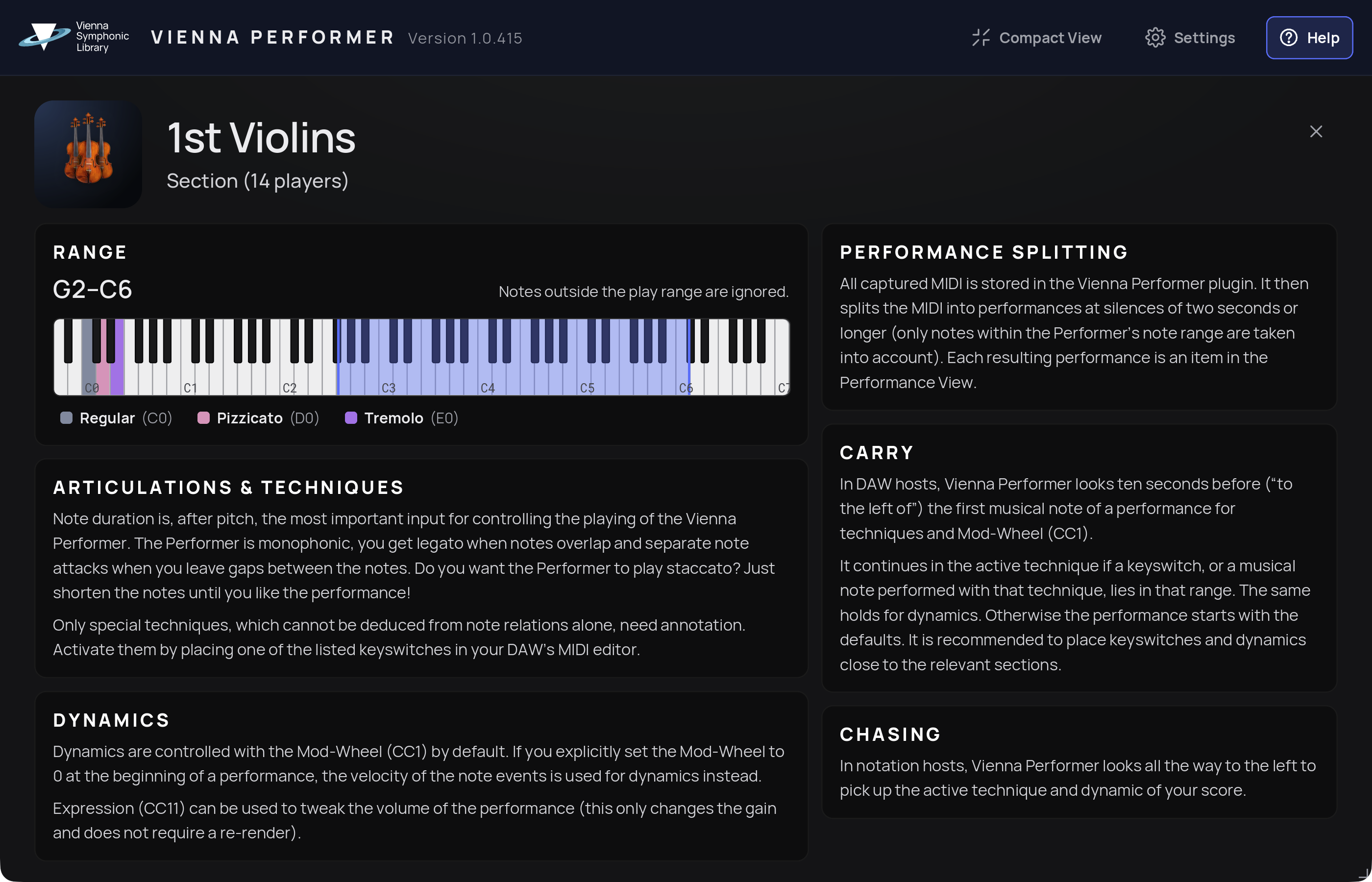
The rules on this page are explained in detail in Programming MIDI. Close the page with the X button; the main window stays as it was.