Vienna Performer is installed as a plug-in for your host application. Install it directly or with Vienna Assistant, if you are already using other VSL products.
Minimum operating system: Windows 10 or macOS 12.
The installer places these plug-in formats on your computer in these folders:
macOS
VST3:
/Library/Audio/Plug-Ins/VST3AU:
/Library/Audio/Plug-Ins/ComponentsAAX:
/Library/Application Support/Avid/Audio/Plug-Ins
Windows
VST3:
C:\Program Files\Common Files\VST3AAX:
C:\Program Files\Common Files\Avid\Audio\Plug-Ins
In your host, Vienna Performer is listed with the other Vienna Symphonic Library instruments (if you already have some).
The preview sounds that play before a render is ready are downloaded with the Vienna Performer.
Unlike other VSL products, Vienna Performer does not use iLok. It is activated through your VSL account: sign in once with the account that holds your Vienna Performer subscription, and your plan and credits are linked to it. If you do not have a VSL account yet, you can create one when you log in.
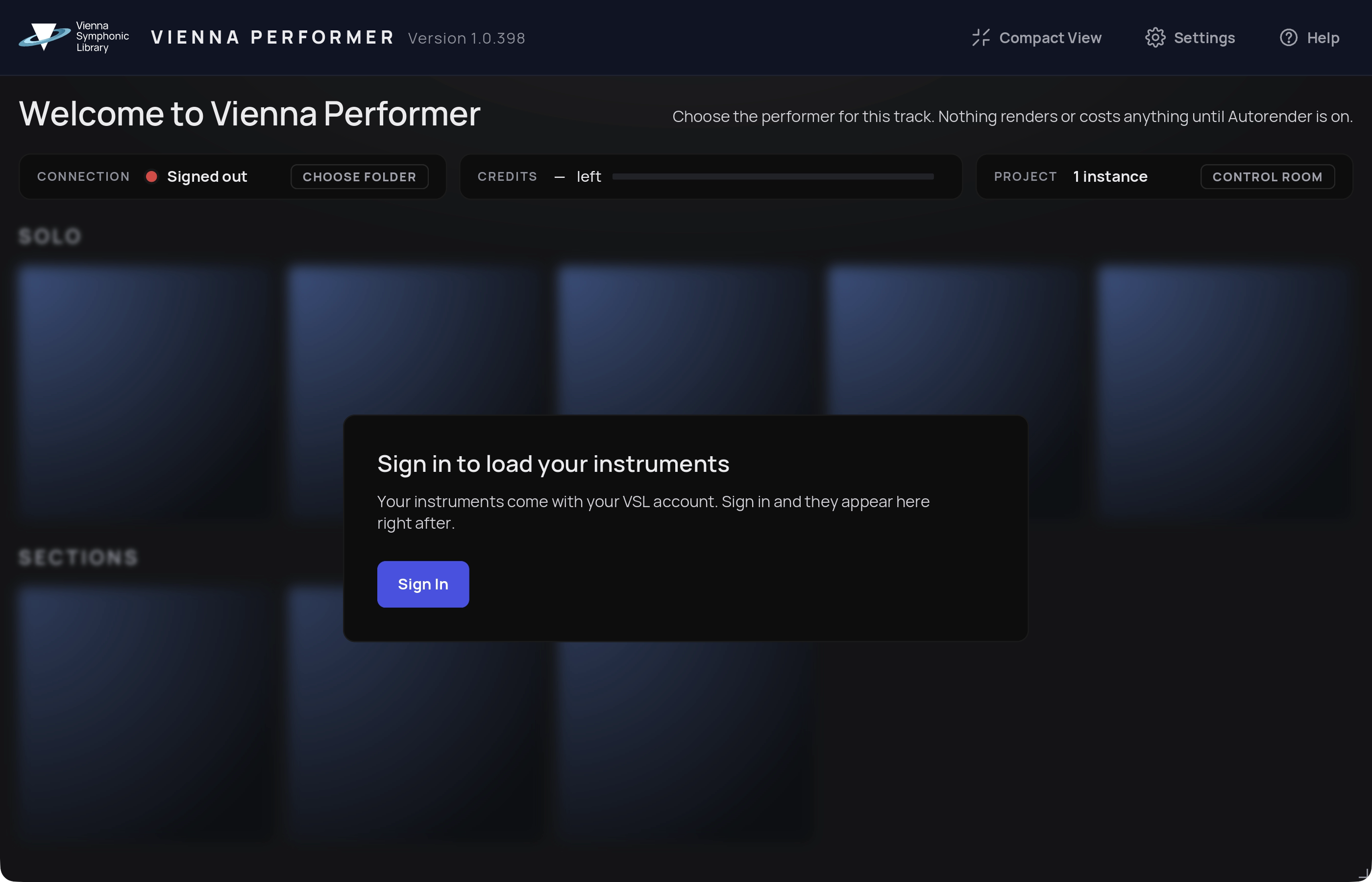
Until you are signed in, the Welcome screen shows Signed out next to Connection and asks you to sign in to load your instruments. Your instruments come with your VSL account and appear as soon as you are signed in.
With Vienna Assistant installed
Insert Vienna Performer on an instrument track. Vienna Assistant launches automatically and checks whether you are logged in. If you are, Vienna Performer is signed in right away.
If you are not logged in, click Login in Vienna Assistant. Your default browser opens.
Log in with your VSL account, then return to your DAW.
If Vienna Performer is signed out while an instrument is loaded, a red Signed out banner asks you to sign in with your VSL account in Vienna Assistant. Renders on disk still play. Click Sign in in the banner or in the Status area.
Without Vienna Assistant
Insert Vienna Performer on an instrument track. The Welcome screen shows Signed out next to Connection and "Sign in to load your instruments".
Click Sign In on the Welcome screen. Your default browser opens.
Log in with your VSL account. When the page says "You can close this tab and return to the app", go back to your DAW.
When you are signed in, the Welcome screen shows Connected, and the Status area shows your account email and your remaining credits. You stay signed in for later sessions.