The Vienna Performer window has a header and five areas. Each is described in its own chapter.
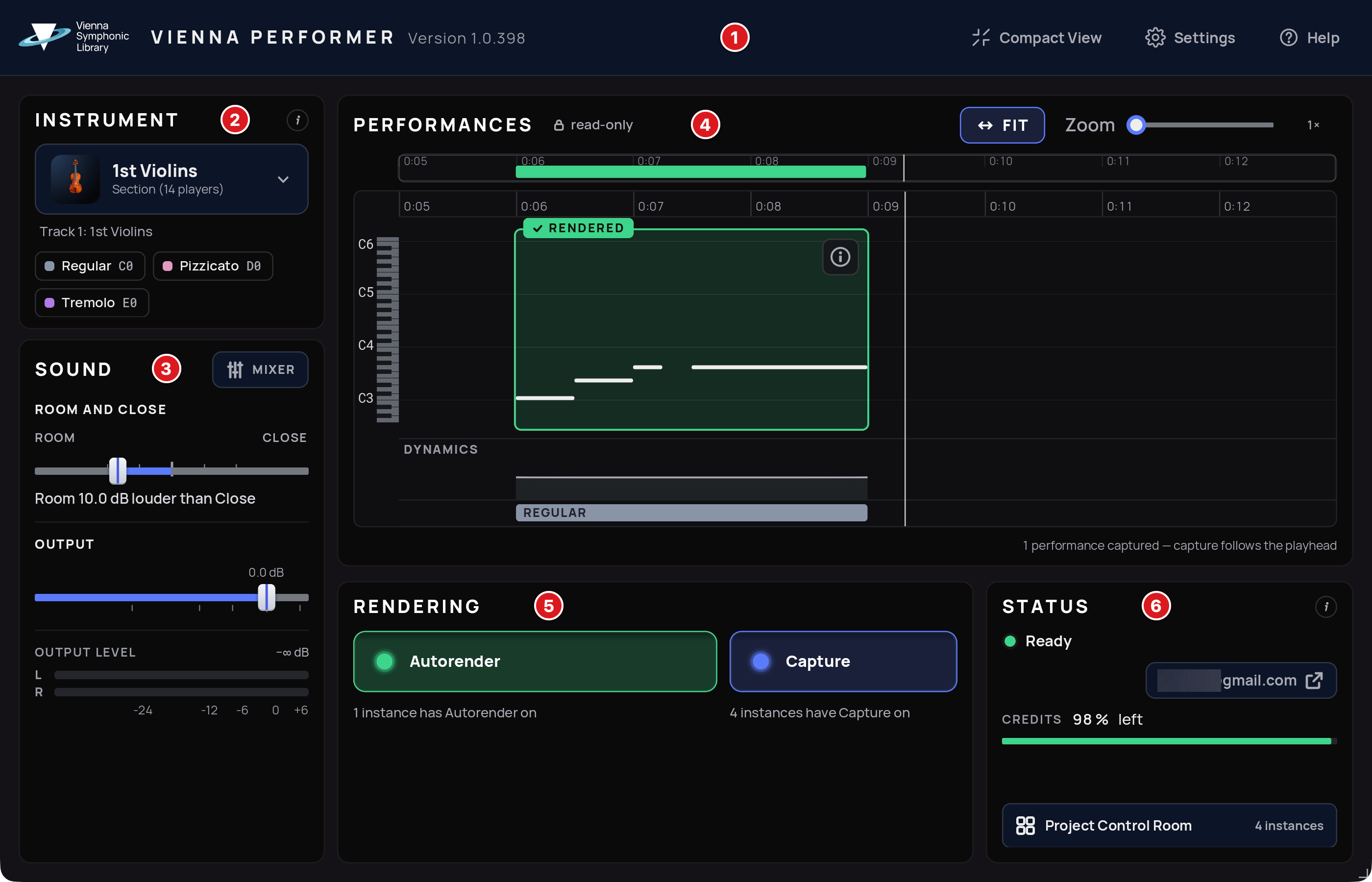
Header (1): version number, Compact View, Settings and Help.
Instrument (2): the loaded instrument model and its techniques with keyswitches.
Sound (3): output level, Room/Close balance and the Mixer.
Performances (4): read-only view of the captured MIDI, split into performances, with their render status.
Rendering (5): the Autorender and Capture switches.
Status (6): connection, credits and the Project Control Room.
Version: the build number of Vienna Performer. Please include it in support requests.
Compact View: shrinks the plug-in to a small strip (see Compact View).
Settings: a menu with the settings, the log and the plug-in size (see Settings and Help).
Help: how the plug-in works, the shortcuts and modifier keys, the instrument help and the tour.
Double-click a fader, slider or panner to set it back to its start value.
Cmd-double-click (macOS) / Ctrl-double-click (Windows) a fader to set it to 0 dB.
Shift-drag a fader or panner to change it in fine steps.
Scroll over a fader, slider or panner to change it in small steps, or hold Shift for larger steps.
Arrow keys: click a fader or panner, then use the arrow keys to change it in small steps, or hold Shift for larger steps.
Explanatory tooltips are on by default: hovering over an area shows a short explanation. You can switch them off in Settings.
The track number (if supported by your DAW) and name from your DAW are shown in the plug-in window and in Compact View.