Connect your AI agent and accelerate your workflow!
Make sure to have your prefered AI agents installed (click to download):
Claude Desktop (by Anthropic)
Claude Code (by Anthropic)
Codex (by OpenAI)
Antigravity (by Google)
You need to use the app versions (not the browser versions)!
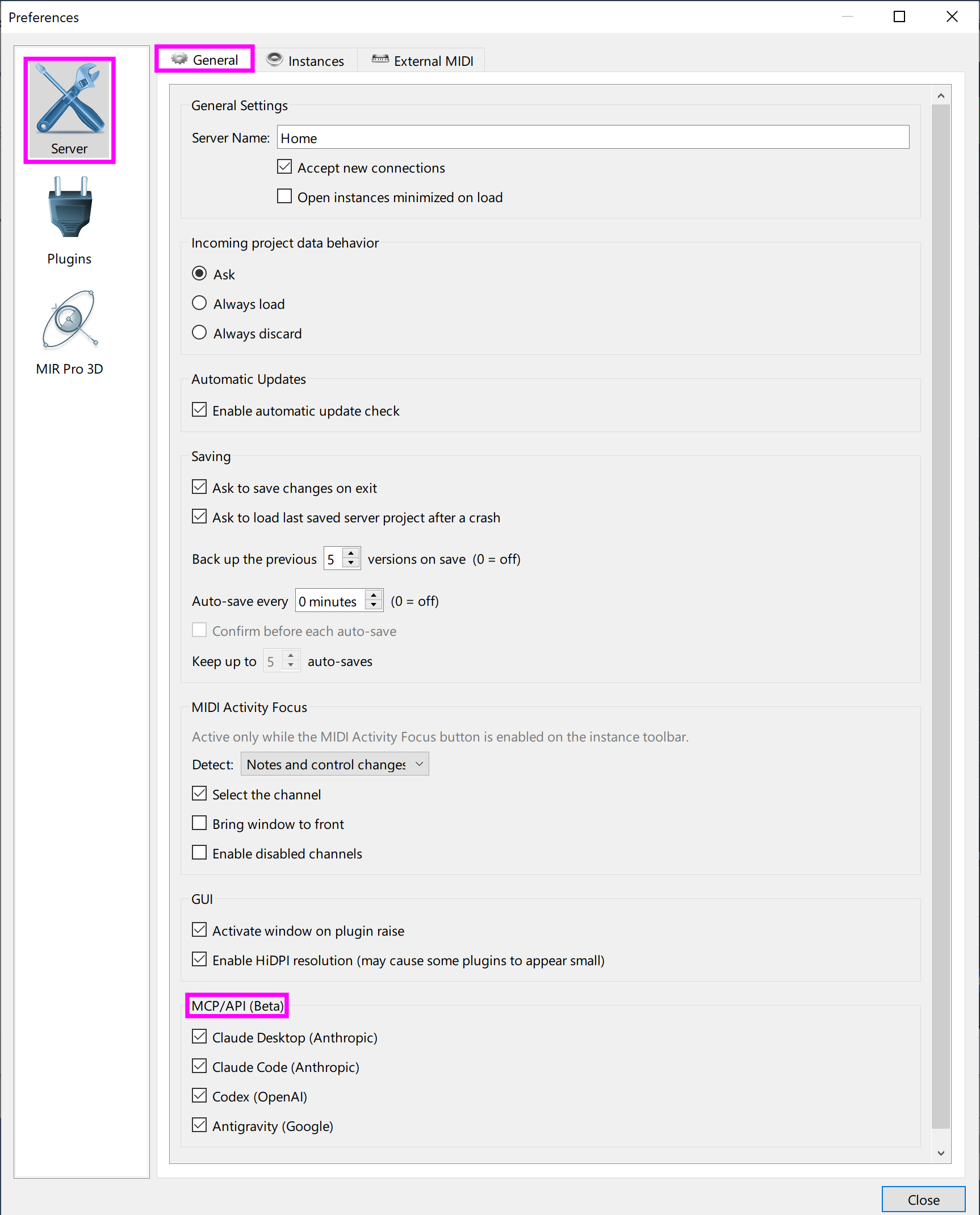
Connect to your AI agents in the VE Pro Preferences.
Start with your first prompts - and accelerate your workflow!
Important
Remember to SAVE your projects before you start experimenting, so that you can always roll back to a previous version!
These are the tasks contained in the VE Pro API. The first time such a task is executed, you will be asked for your allowance, and you can safely choose "Always allow".
Instance management: list instances, rename them, set current instance, enable/disable, preserve/decouple, raise windows, disconnect clients, add/delete instances.
Session inspection: describe the current VE Pro setup, inspect loaded channels, instruments, FX, routing, colors, names, automation, and MIDI routing.
Channel building: add folders, add empty/bus channels, create playable channels, clone/move/delete channels, and apply structured channel templates.
Instrument and plugin loading: resolve installed plugins, load instruments or FX, inspect favorites/providers, list presets, and load presets.
Routing: set MIDI ports/channels, inspect occupied/free MIDI routes, set output routing, build section buses and folder structures.
Mixing and parameters: read/set channel, instrument, and FX parameters by value or edit string.
Automation: list automation mappings, find automation targets, add/replace mappings, and remove mappings.
Colors and labeling: rename channels/instances, set colors for sections/channels/instances.
This is not only about adding an AI feature. It is about removing the repetitive work that often gets between you and writing music.
Your VE.Pro API is limited to the functionality of Vienna Ensemble Pro, along with access to the product and preset structure of VSL products.
Loading/saving files: That task is entirely up to you!
Transport/timeline control. No play/stop/record transport, tempo map, or arrangement timeline—VE Pro is a hosting environment slaved to a DAW, and the API doesn't drive a song's playback position.
In short, the API manages the hosting and configuration side (instances, channel sets, plugins, presets, parameter values, routing), not the creative authoring, recording, or audio-rendering side of making music.
Make sure that you are running the latest version of Vienna Ensemble Pro 8 on all computers in your setup. No additional settings necessary on your networked computers, as long as your MCP settings are activated on your master computer.
Mixed Prompts
Start simple, then get more specific. And remember that you can talk to your AI agent, to refine settings or add more tasks.
Describe my current VE Pro instance and list available VSL instrument and FX providers.
Create a string quartet template using my installed VSL libraries.
Colour all brass instruments red.
Rename all Channels so they are prefixed with a short version of their folder name.
Route all my woodwinds to a new bus.
Make sure my track names are a short version of my loaded preset name, for all VSL instruments.
Automation Prompts
There's always room for improvement. Analyze your setup and find out how you can take advantage of the powerful automation features in VE Pro.
I want to automate all my String section volumes to individual CCs. Start with port 1 channel 1 and CC70.
Set up one CC to activate/deactivate all percussion channels.
Prompts for improved efficiency with existing setups
Create new sub-busses for all my instrument groups
Merge all my VE Pro instances into one, with clear organization in folders.
Set up one CC to activate/deactivate all percussion channels.
Template Creation Prompts
AI integration is not limited to technical setup. You can also use your AI agent as a creative assistant when building templates for a specific musical style, historical period, composer, or piece.
For example, you can ask the AI to suggest an instrumentation plan before it creates channels. This is useful if you want to write in the style of a Classical concerto, a late Romantic symphony, a chamber ensemble, a film-score orchestra, or a specific historical work.
You can ask for historically informed choices, then let VE Pro build the practical template structure: folders, instruments, buses, names, colors, MIDI routing, and automation.
Create a French impressionist orchestral template inspired by Debussy and Ravel. Prioritize coloristic woodwinds, harp, celeste, muted strings, delicate percussion, and transparent section routing.
I have a piano sketch and want to orchestrate it three ways: Classical, late Romantic, and modern cinematic. Suggest the instrumentation for each version, then create one VE Pro template for the version I choose.
Create a reduced laptop-friendly version of a large orchestra template, using lighter patches where possible, but keep the same folder and routing structure so I can later expand it.
Create a historically informed template for Mozart’s Violin Concerto No. 3. Use a Classical-period orchestra layout and suggest appropriate VSL instruments before creating channels.
For exact historical recreations, always compare the result with the original score or a trusted instrumentation source. But for creative starting points, this can be a powerful way to move from an idea to a playable VE Pro setup very quickly.
Tip
To avoid having to constantly click "Always allow" when executing a task, you can ask the AI to always allow vepro-api tool.
If you love building templates and improving your workflow with the help of AI, we can help you go deeper and faster. If you hate building templates, this new approach can help you get back to composing.
This is a beta version, so please experiment, report what works, share what breaks, and share the prompts that give you great results with us:
Vienna Ensemble Pro Forum
VSL Discord Server
Contact us via support@vsl.co.at
For repetitive tasks in your studio, you can ask your AI to create a script for you, which you can modify and run in your Terminal (macOS) or in Windows Terminal (Windows).
Create a script that colours instruments with a specific name pattern (regex) in my current VE Pro instance with a specified colour.
Example: python reColour 'Flute.*' 0x993527
Create a script for VE Pro that: Solos all instruments across all instances matching a regex?
example: soloInstruments.py BBC.*
It should work for every session. For any instance.
Working in projects
It will help a lot to work with “projects” in your AI client, to stay in contextual thinking for multiple chats/requests. To do that, create a VE Pro project and create sub-chats as you go.
As we have already supplied the basic rules in our API, be extra careful with additional instructions, as they may contradict the already defined rules.